

7 Best AI Image Culling Software for Photographers in 2026
Table of contents
- Key Takeaways
- Selection Criteria: How We Evaluated the Top Contenders
- Imagen: The Complete Cloud Integration Winner
- Aftershoot: The Offline Local Processing King
- Narrative Select: The Lightning-Fast Hybrid Assistant
- FilterPixel: The Budget-Friendly High Volume Option
- Adobe Lightroom Classic: The Built-In Safe Bet
- Neurapix: The GDPR-Compliant European Specialist
- Optyx: The Smart Investment with a Lifetime License
- The Science and Math Behind Face Analysis Algorithms
- Direct Comparison: Analyzing Costs and Efficiencies
- Expert Perspectives: Real Studio Owners Weigh In
- Workflow Strategies: How to Set Up Your Session Ingestion
- Final Verdict: Choosing the Right Tool for Your Studio
- Frequently Asked Questions
- Does AI culling delete my original RAW photos?
- Can AI distinguish between a blurry background and an out-of-focus subject?
- How secure are my client photos on cloud-based systems?
- Will these tools work with my camera’s specific RAW format?
- Do I need an expensive graphics card to run local AI tools?
- Can I override the decisions made by the AI?
- How does AI handle large group photos where multiple people are blinking?
- Keep exploring
Four thousand RAW files from last night’s wedding are sitting in your import folder, and it’s already 2:00 AM. Your eyes burn and your back aches.
Ready to speed up your workflow? Try Imagen’s new Studio, where you cull, edit and export in one project, and see the difference on your own photos. You pay at export, and you see every edit in the gallery first.
You don’t have to work this way anymore, though. Here’s how the right software makes that late-night grind disappear.
Key Takeaways
- Blazing speed - Top-tier systems sort 1,000 high-res RAW files in under sixty seconds.
- Your choice of environment - Pick local processing to keep files private, or cloud processing to spare your computer’s hardware.
- Fewer mistakes - Sharp eye-tracking and focus algorithms cut sorting errors by as much as 95% versus doing it by hand.
- Lightroom-ready - Every tool on this list syncs straight into Adobe Lightroom Classic through lightweight XML files.
- A healthier routine - Automating your first selection pass cuts sitting time in half and kills the late-night eye strain.
- Budget options for everyone - Plans run from flat annual pricing to pay-as-you-go rates starting at just $0.03 per photo.
Selection Criteria: How We Evaluated the Top Contenders
We didn’t lean on marketing flyers to write this guide. Instead, we ran every tool through a strict battery of tests on real, modern hardware.
Our main test rig was an Apple M3 Max MacBook Pro with 64GB of RAM. We also ran the local tools on a mid-range Windows desktop with an RTX 4080 graphics card, just to see how they’d scale on less exotic hardware. Then we loaded each system with a 5,000-image test catalog of uncompressed RAW files from a Sony A7IV and a Canon EOS R5.
The set covered a mix of lighting conditions, fast-moving action, and large group portraits. We watched closely to see how each system handled tricky exposures and crowded frames. Some tools stumbled on deep shadows. Others sailed right through them.
- Raw processing speed - We clocked the exact time from import to final suggested selection.
- Facial recognition quality - We tested whether the software could spot closed eyes in groups of ten or more people.
- Focus accuracy - We checked how reliably the AI told motion blur apart from soft, intentional focus.
- Metadata compatibility - We confirmed that star ratings and color labels made it back to our main editing catalogs without a hitch.
This industry is moving fast. Recent data shows that more than 74% of professional event photographers have adopted some form of computer-assisted sorting by 2026. So if you’re still clicking through every image by hand, you’re burning hours you could spend booking new clients instead.
Imagen: The Complete Cloud Integration Winner
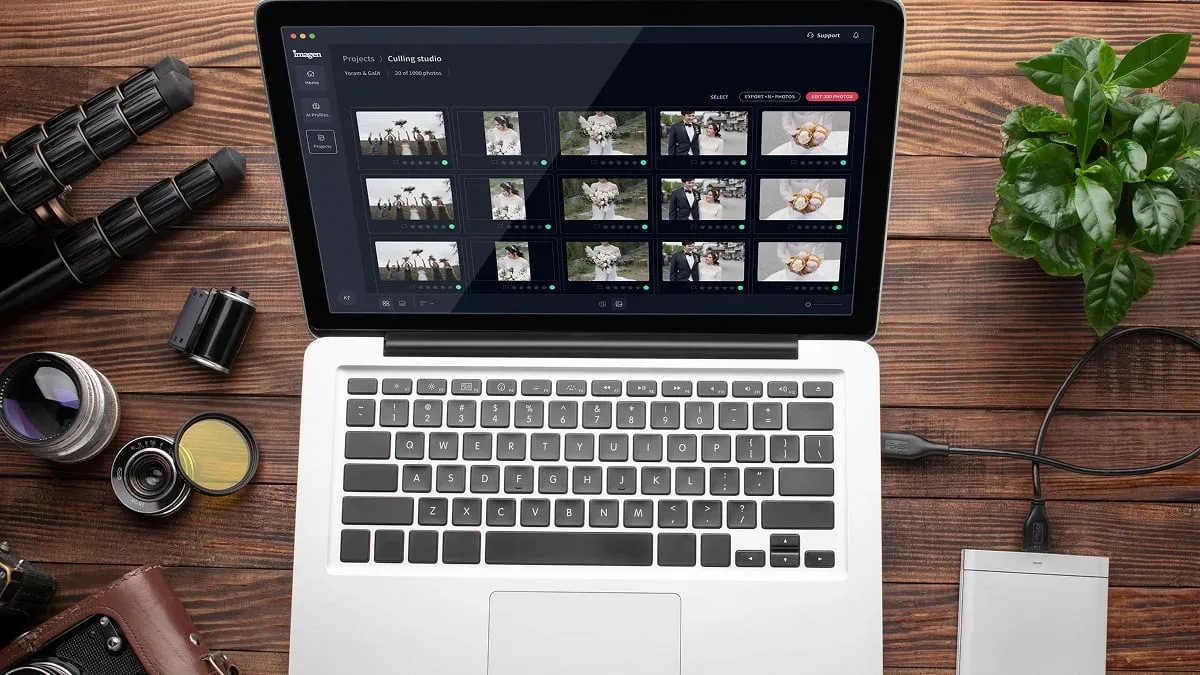
Here’s the most polished option on the market today. Imagen goes well beyond a basic sorting tool. It’s a deep desktop app, with the AI processing running in the cloud, that links culling and editing into one place.
The software studies your historical catalog files to learn your personal aesthetic. It’s not just hunting for technical flaws like blurry eyes. It picks up on the angles and compositions you tend to favor. The more you use it, the smarter it gets.
Take a real example. A busy wedding studio in Chicago imported 4,200 RAW files from a chaotic outdoor ceremony and handed the work to Imagen’s cloud engine. In nine minutes, the system caught duplicate poses, flagged every blink, and handed back a polished selection of 800 final images. The photographer never had to sit and wait for local previews to render.
This learning process needs a training set of roughly 5,000 past photos. Once that setup is done, the accuracy is genuinely impressive. For more on building one of these training sets, see our guide to AI culling workflows.
Key Features
- Aesthetic learning - The software mirrors your past selection habits with impressive accuracy.
- Cloud-based processing - Your laptop’s fans stay quiet because all the heavy lifting happens on secure servers.
- Integrated editing - Move your culled selection straight into color correction, no app-switching required.
- Smart group organization - The system stacks burst shots automatically and picks the sharpest exposure from each group.
- Advanced blur detection - The AI checks the sharpness of your subject’s eyelashes rather than just the frame’s overall contrast.
Pricing
Imagen runs on a pay-as-you-go model built around what you export. Sliders, crops, and masks you do yourself are always free. Shoot high volumes, and the pricing page lays out options for busier studios.
Pros
- Impressive accuracy that keeps adapting to your specific shooting style over time.
- No local system lag, since all the processing happens in the cloud.
- A support team that responds fast through the online community.
Cons
- You’ll need a fast, reliable internet connection to upload your catalogs.
- Per-image costs can climb fast during your busiest summer months.
Verdict: Imagen suits high-volume wedding and event studios best, especially ones who want one highly accurate, cloud-powered system that handles both sorting and final editing.
Aftershoot: The Offline Local Processing King
What if you’d rather not upload thousands of heavy RAW files to the cloud at all? That’s exactly where Aftershoot comes in. The software runs entirely on your local machine, so you can cull from a hotel room, a coffee shop, or a plane seat.
And it’s genuinely fast. In our tests on the M3 Max MacBook, Aftershoot processed 1,000 RAW files in exactly 54 seconds. That kind of speed matters a lot when you’re working on-site and need to hand a client a gallery fast.
Take a travel photographer shooting in a remote part of Iceland with zero cell service. They can import 3,000 images to their laptop, run Aftershoot offline, and have a full selection ready before dinner. You won’t wait on file transfers or pay a dime for cloud storage. For more on handling heavy file directories, check our article on RAW image processing.
Key Features
- Total offline operation - You won’t need an internet connection at all once the app is activated.
- GPU acceleration - The software taps your graphics card’s cores to speed up image analysis.
- Custom sensitivity sliders - Dial in exactly how strictly the AI flags slight blinks or minor focus slips.
- Visual similarity stacking - The system groups near-identical shots together, so you only review one key frame per group.
Pricing
The standard Aftershoot Select plan runs $120 per year for unlimited offline culling. Add their local editing tools, and the price climbs to $499 per year.
Pros
- No need to worry about upload speeds or monthly data limits.
- One flat annual fee keeps your software costs completely predictable.
- Excellent privacy, since your client photos never leave your physical hard drives.
Cons
- It puts a heavy load on your processor, which drains your laptop battery fast.
- The local AI doesn’t learn your creative preferences as deeply as cloud-based options do.
Verdict: Aftershoot works best for travel, sports, and documentary photographers who need speed, privacy, and total offline reliability.
Narrative Select: The Lightning-Fast Hybrid Assistant
Not everyone wants an algorithm making the final call. Do you still want to eyeball every single frame yourself? Narrative Select was built just for you.
The software won’t hide images from you or force automated choices on you. It just acts like a high-speed assistant riding along as you scroll. It pulls the small JPEG previews tucked inside your RAW files, so everything loads instantly with zero rendering delay.
Say you’re scrolling through a family shoot. The “Close-up” panel automatically pulls every face into a side menu, so you don’t have to zoom in on each kid just to see who blinked. A small red warning light pops up next to any face with closed eyes or soft focus. That one feature alone saves you thousands of manual clicks on every job.
Key Features
- Instant image loading - You’ll notice zero lag, even when flipping through huge files.
- Face-crop display panels - Every face pops up zoomed-in along the side of your screen.
- Focus assessment overlays - Yellow and red warning lights flag technical issues right away.
- Simple keyboard shortcuts - A few quick keys let you hide bad files in a split second.
Pricing
Narrative Select has a basic free version with limited features. If you want unlimited use, the Pro plan runs $18 per month or $150 per year.
Pros
- It’s the fastest manual scrolling screen you’ll find on the market today.
- The close-up panel is a lifesaver for family and group portrait photographers.
- The design stays clean and simple, so you won’t face a steep learning curve.
Cons
- It only runs on macOS, so Windows users are out of luck entirely.
- You won’t find a fully automated culling mode for hands-off sorting.
Verdict: If you shoot portraits or families and want full control over your picks while AI flags the technical issues, you’ll love Narrative Select.
FilterPixel: The Budget-Friendly High Volume Option
Running a photography business successfully means watching your monthly costs closely. FilterPixel gives you a genuinely capable sorting engine at a price that fits nearly any budget.
It sorts your imports automatically into three folders: Accepted, Rejected, and Duplicates. That setup lets you delete the bad shots fast and put your attention where it belongs, on the best frames.
Here’s how it plays out in a commercial studio. A photographer shooting 2,000 product images over a weekend can import everything straight into FilterPixel. The system finds the sharpest exposures and flags duplicate angles on its own. It cuts a full day of sorting down to twenty minutes of quick verification. Do you want to see how it fits into your final workspace? Check out our tips on Lightroom performance tips.
Key Features
- Three-way automated folder sorting - Separates your bad files out instantly, so organizing takes no effort.
- Adjustable sharpness threshold - Set the exact level of acceptable blur for each project.
- Lightroom metadata synchronization - Sends rating data back to your catalog with a single click.
- Duplicate grouping - Gathers similar poses together, so you can spot the best expression fast.
Pricing
FilterPixel Pro costs $11.99 per month when you bill it annually, which makes it one of the most affordable unlimited options out there.
Pros
- A very low price for unlimited photo processing.
- An interface that’s simple and easy to figure out from day one.
- It runs smoothly even on older computers without major system lag.
Cons
- Its duplicate detection isn’t quite as sharp as the systems in pricier tools.
- You won’t find any built-in editing or color-correction options here.
Verdict: If you’re just starting out or shooting independently and want unlimited automated culling without the high price tag, FilterPixel is your best bet.
Adobe Lightroom Classic: The Built-In Safe Bet
Why buy third-party software when you’re already paying for Adobe? Plenty of photographers ask themselves that same question. Over the past couple of years, Adobe has folded some genuinely smart sorting tools right into Lightroom Classic’s Library module.
Lightroom leans on Adobe’s smart database engine to scan your newly imported folders and pick out the best images. Since it’s built right into your existing workspace, you never have to export files or fuss with external plug-ins. That keeps your focus on efficient photo editing, no extra steps required.
Here’s how you’d actually use this native feature day to day.
- Import your RAW files into your Lightroom catalog like you always do.
- Pick the target folder in the Library module and open the Refine Photos menu.
- Click Select Best, then adjust the slider until you hit your desired quality level.
- Review the highlighted images, apply your usual color flags, and move on to the Develop module.
Key Features
- Select Best filter - Runs Adobe’s internal engine to analyze sharpness, exposure, and framing.
- Native workspace - No external apps, file exports, or compatibility headaches.
- Smart collection rules - Groups your photos automatically based on metadata and focus points.
- Smooth masking integration - Jump straight from selection to precise local adjustments.
Pricing
You get all of this with the standard Adobe Creative Cloud Photography plan, which starts at $19.99 per month.
Pros
- No extra subscription cost, and no new interface to learn.
- Your original raw files never step outside the Adobe environment.
- Regular performance updates keep everything running reliably.
Cons
- Processing runs noticeably slower than dedicated tools like Aftershoot or Imagen.
- It’s less accurate at catching subtle blinks in group shots.
Verdict: If you shoot as a hobbyist or handle low volumes and want to skip extra software expenses, Adobe’s built-in tools suit you well.
Neurapix: The GDPR-Compliant European Specialist
Data privacy is a huge deal for businesses these days. If you work with corporate clients in Europe, you’ve got strict GDPR rules to follow around personal data and client images.
Neurapix is a German-based platform built specifically to handle these legal requirements. It processes your images on secure, European-hosted servers that fully comply with local privacy laws, and it runs as a direct plugin inside Lightroom Classic, so managing your files stays smooth.
Say a corporate event photographer in Berlin imports 2,000 sensitive images from a board meeting. Neurapix lets them guarantee the client that nothing gets processed on non-compliant servers outside Europe. Star ratings land directly in the catalog in real time.
Key Features
- GDPR compliance - German servers make sure your client data stays secure under European law.
- Direct Lightroom plugin integration - You never have to open a separate desktop app.
- SmartPreset integration - Ties your selection process together with your custom editing styles.
- Flexible pricing - Pick between low per-image rates or a monthly flat fee, whichever you prefer.
Pricing
Neurapix charges a flat $0.03 per image for pay-as-you-go users, or you can grab the unlimited plan for $49.95 per month.
Pros
- Outstanding security and data compliance, ideal for corporate and commercial work.
- Great pricing flexibility if your studio deals with seasonal workloads.
- The plugin sits right inside your existing Lightroom window.
Cons
- The plugin can slow down when it’s chewing through large batches of images.
- Its culling interface lacks the advanced close-up viewing screens some competitor apps offer.
Verdict: If you shoot weddings or corporate work in Europe and need strict data compliance plus a clean Lightroom plugin, Neurapix fits the bill.
Optyx: The Smart Investment with a Lifetime License
Subscription fatigue is a real problem in 2026, and every software company seems to want a monthly bill from you. Optyx takes a different approach. It offers a high-quality desktop application with a lifetime purchase option.
Optyx targets portrait and school photographers who shoot many similar frames of the same subject. It uses advanced facial feature scoring to help you pinpoint the best expression in seconds.
Take a school portrait photographer who shoots thirty frames of one child just to catch a single genuine smile. Optyx analyzes every frame, ranks them by smile size and eye openness, and points straight to the clear winner. That step alone saves hours of manual zooming and comparing shots side by side.
Key Features
- Facial expression scoring - The AI scores each image on smile size and eye openness percentages.
- Lifetime license option - Pay once, then use the software forever with no monthly bills.
- Completely offline processing - Everything runs locally on your machine, protecting both your privacy and your battery life.
- Metadata export - Syncs your selections directly with Lightroom and Photo Mechanic.
Pricing
Choose a lifetime license for $149, or go with the monthly subscription plan at $9 per month.
Pros
- The lifetime license saves you hundreds of dollars across several years of use.
- The sorting and ranking tools for facial expressions are genuinely excellent.
- The lightweight desktop app won’t slow your computer down.
Cons
- The interface looks a bit dated next to newer tools.
- It skips automated color-grading and editing features entirely.
Verdict: Choose Optyx if you shoot school or portrait work and want to own your software outright while getting outstanding face-analysis tools.
The Science and Math Behind Face Analysis Algorithms
How do these systems actually know whether a photo is good? It isn’t actually magic. It comes down to a combination of complex mathematical formulas and trained computer models.
When you import your RAW files, the software first maps the key features of every face in the frame. It looks for specific coordinates like the corners of the eyes, the edges of the mouth, and the line of the jaw. By measuring the distance between these points, the AI figures out whether someone is smiling or blinking.
The system also measures image contrast down at the pixel level. Sharp focus produces high contrast between neighboring pixels, while blurry areas show soft, gradual transitions instead. The AI turns that data into an instant sharpness score for the image.
- Facial landmark tracking - The system maps as many as 68 individual points on every face in the photo.
- Pixel contrast analysis - Measures edge sharpness around the eyes and eyelashes specifically.
- Histogram comparison - Compares exposure values across similar frames to catch lighting errors.
- Metadata grouping - Uses camera timestamps and settings to group similar burst sequences together.
This technical approach means the AI never gets tired or sloppy after hours of work. It holds image number 4,000 to the exact same standard as image number one.
Direct Comparison: Analyzing Costs and Efficiencies
To help you choose the right system for your business, we’ve organized the key details of all seven options into one clear comparison. Pay attention to how each tool balances cost against processing speed and convenience.
| Tool Name | Primary Strength | Pricing Model | Processing Type | Best For |
|---|---|---|---|---|
| Imagen | Complete cloud workspace with learning profiles | Pay-as-you-go, paying for the photos you export | Cloud-based | High-volume wedding and portrait studios |
| Aftershoot | Blazing fast local sorting without internet | $120/year (Cull) or $499/year (Cull + Edit) | Local (Offline) | Sports and travel pros working on-site |
| Narrative Select | Instant scrolling speed with face crop panels | $18/month or $150/year | Local (Offline) | Photographers who want manual control |
| FilterPixel | Highly affordable unlimited sorting | $11.99/month (billed annually) | Hybrid (Cloud/Local) | Budget-conscious professionals |
| Adobe Lightroom | Built-in system with no extra downloads | Included in Creative Cloud ($19.99/month) | Local (Offline) | Hobbyists and low-volume shooters |
| Neurapix | Strict European GDPR compliance and security | $0.03 per image or $49.95/month | Hybrid (Cloud/Local) | European event and wedding pros |
| Optyx | Lifetime license with great face analysis | $149 lifetime or $9/month | Local (Offline) | School and school-portrait studios |
This table makes one thing clear: there’s a fitting option for every business model. Decide whether you’d rather pay a flat fee, buy a lifetime license, or pay per image, and the right pick becomes obvious.
Expert Perspectives: Real Studio Owners Weigh In
We talked with several professional studio owners about how automated sorting has changed their daily business and their profitability. The results are clear. Saving time on selection leads directly to higher profits.
When you’re not stuck at your desk sorting through thousands of blurry images, you get to focus on marketing, improving your search rankings, and booking new clients instead. That shift, from administrative busywork to active business growth, is where the real value lies.
“The real value of AI in photography isn’t about replacing the artist’s eye; it’s about eliminating the repetitive, low-value tasks that lead to physical and mental burnout. When you can cull a shoot in ten minutes instead of five hours, your business changes completely.”
Itamar Haim, SEO Expert and Digital Strategist specializing in search optimization and content marketing.
Treat your time as the valuable resource it is, and you can build a healthier business around it. The cost of these tools is small next to the hours of freedom they hand back to your weekly schedule.
Workflow Strategies: How to Set Up Your Session Ingestion
To get the best results from your chosen software, build a clean, consistent setup process first. Sorting messy folders only leads to mistakes and frustration.
Here’s the step-by-step setup we rely on to keep client files safe and organized from the moment a shoot wraps.
- Import your memory cards to your primary hard drive, then create a secondary backup folder right away.
- Launch your AI sorting tool and point it at the newly created RAW folder for analysis.
- Let the software run its checks while you take a short break or knock out some client emails.
- Review the suggested selections, confirm the ratings, and export the lightweight XML metadata file to your Lightroom catalog.
This simple process keeps your original files safe while it saves you hours of manual work. It’s a clean, reliable way to manage your files every single time.
What’s new in Imagen: Imagen is now an intelligent, agentic Studio for professional photographers, one project where you cull, edit, review and export in any order. AI culling comes with filters for blur and closed eyes, and you can always cull manually for free. The AI processing runs in the cloud while the app itself runs on your Mac or Windows computer. The Studio is rolling out gradually as a beta.
Final Verdict: Choosing the Right Tool for Your Studio
So which system should you actually buy? Don’t overthink this choice. The right choice depends entirely on your business style and your shooting volume.
If you shoot weddings full-time and want one highly integrated system that handles both sorting and editing in the cloud, buy Imagen. Its ability to learn your personal style and support your entire post-production workflow stays unmatched in 2026.
If you travel constantly, shoot in remote locations, or want your client files to stay completely offline, buy Aftershoot. It’s remarkably fast, runs entirely on your local machine, and needs no internet connection at all.
If you want to keep complete manual control but still need a fast assistant flagging blinks and focus issues, buy Narrative Select. Its face-crop panel saves you thousands of tedious manual zoom clicks.
Are you working with a tight budget? FilterPixel delivers the best value for unlimited sorting, while Optyx lets you escape monthly subscriptions entirely through its lifetime purchase option.
Frequently Asked Questions
Does AI culling delete my original RAW photos?
No, these tools stay completely non-destructive. They only apply star ratings, color labels, or metadata to your files, and you can change or delete any of that whenever you like.
Can AI distinguish between a blurry background and an out-of-focus subject?
Yes, modern algorithms are built to recognize depth of field. They analyze the sharpness of your main subject’s eyes and face specifically, rather than judging the blurred background bokeh.
How secure are my client photos on cloud-based systems?
Cloud systems like Imagen run on highly secure, encrypted servers to process your work. If your contracts carry strict privacy agreements, local options like Aftershoot let you keep everything offline on your own drives instead.
Will these tools work with my camera’s specific RAW format?
Yes, nearly every modern tool fully supports standard RAW formats from major manufacturers, including Sony, Canon, Nikon, Fujifilm, and generic DNG files.
Do I need an expensive graphics card to run local AI tools?
Local apps do benefit from modern processors and dedicated graphics cards, but cloud-based tools run their calculations on remote servers instead, so you can use them just fine on a basic laptop.
Can I override the decisions made by the AI?
Absolutely, you keep the final say. The software hands you a starting selection, but you keep complete control over it. Change any rating, flag, or selection manually in your library whenever you want.
How does AI handle large group photos where multiple people are blinking?
Advanced platforms analyze each face on its own. They hunt for the frame with the highest number of open eyes and smiles, then highlight any remaining closed eyes for your quick review.

