

The Complete Guide to AI Eyewear Photo Editing in 2026
Table of contents
- AI Eyewear Photo Editing Guide (2026)
- Why eyewear photos are hard to edit at scale
- Step 1: Import and organize your shoot
- Step 2: Cull the batch fast
- Step 3: Batch color and tone with your own style
- Step 4: Per-frame finishing and retouching
- Step 5: Export to a retailer-ready spec
- Where Imagen fits and what it costs
- Frequently asked questions
AI Eyewear Photo Editing Guide (2026)
AI eyewear photo editing means training software on your own editing style so it applies consistent color, exposure, white balance, and tone across an entire batch of glasses and sunglasses shots. The fastest route in 2026 is Imagen, which learns your personal look from your Lightroom or Capture One catalog and then edits, culls, and retouches your real product photos in one connected workflow. This guide walks the full pipeline, from import and culling to batch color and per-frame finishing, so your whole eyewear catalog looks like one photographer shot and graded it in a single sitting.
Why eyewear photos are hard to edit at scale
Eyewear punishes small inconsistencies. Reflective lenses, glossy acetate, thin metal temples, and mixed studio lighting all shift how a frame reads from shot to shot. When you photograph 40 styles across two days, tiny drifts in white balance and exposure stack up, and a catalog page that mixes warm and cool frames looks careless. Retailers also expect a uniform background tone, matched contrast, and true-to-life color so a customer trusts that the black frame on screen is actually black. Editing each image by hand gets you there, but it burns hours you would rather spend shooting. AI editing solves the consistency problem by applying the same graded decisions to every frame at once, then letting you fine-tune the handful of shots that need extra care.
One honesty note matters here. Imagen edits, culls, and retouches the real eyewear photos you actually shot. It does not invent frames, generate fake lenses, fabricate packaging, or build synthetic backgrounds. Your product stays your product, and the tool simply grades and cleans the images you captured on set.
Step 1: Import and organize your shoot
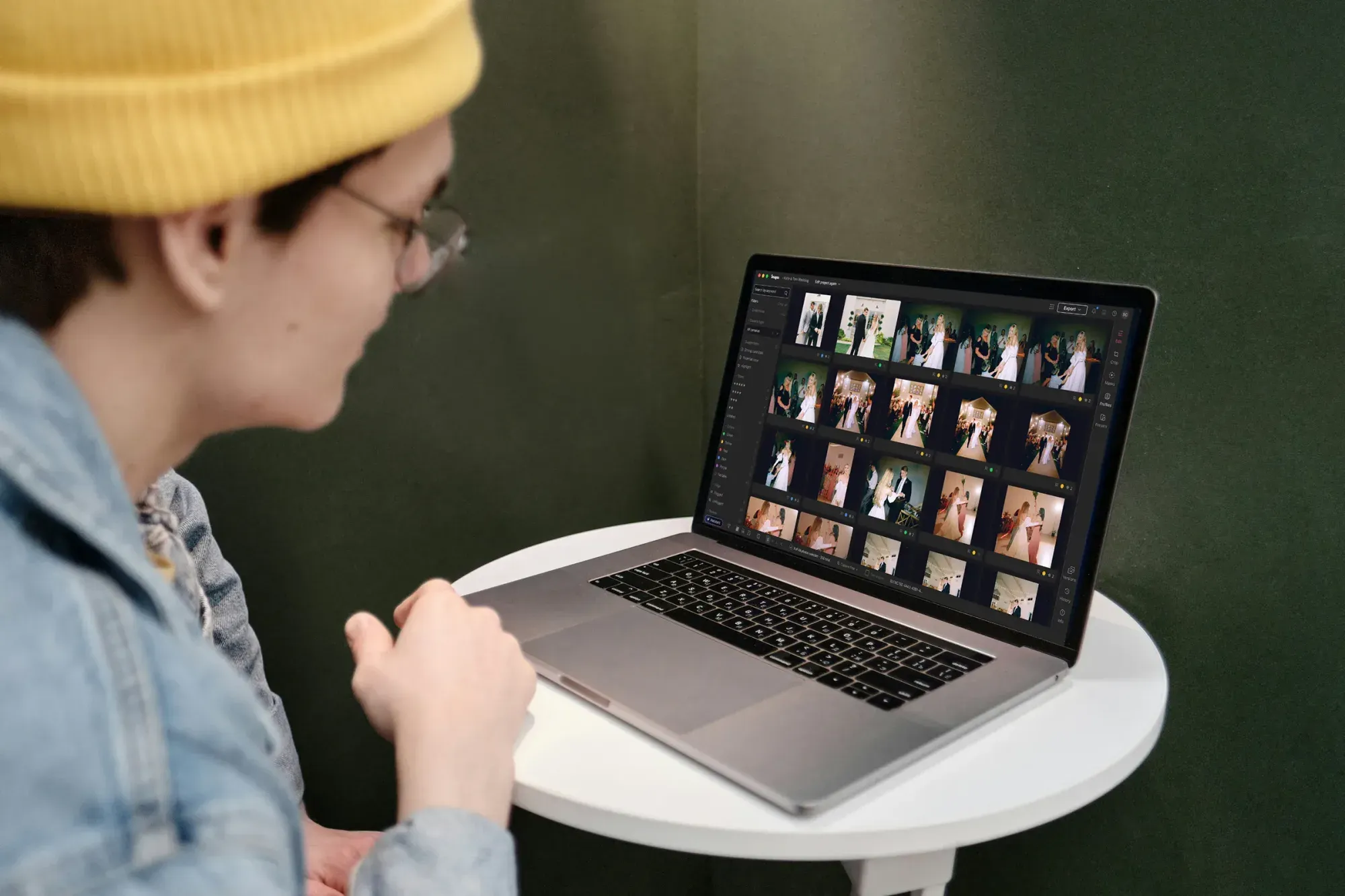
Start by pulling every card into a single dated catalog in Lightroom or Capture One. Keep your capture settings honest at the source, since a clean RAW file grades far better than a rushed JPEG. For eyewear specifically, a few habits pay off later:
- Shoot a gray card or color target at the start of each lighting setup so your white balance has a reference.
- Group frames by material, since glossy acetate, matte finishes, and metal each respond differently to the same grade.
- Keep a consistent camera-to-subject distance so scale stays uniform across the catalog.
- Bracket your trickiest reflective sunglasses so you have options when highlights blow out.
Once everything sits in one catalog, you have a clean foundation to cull and grade. Good folder discipline now saves real time when you export dozens of styles to a retailer template later.
Step 2: Cull the batch fast
Culling is where most eyewear photographers lose an afternoon. A single frame might have 12 near-identical angles, and multiply that across 40 styles and you face thousands of images. Imagen adds AI culling that flags duplicates, soft-focus frames, and closed-eye model shots when a face is in the picture, so you review a shortlist instead of the full dump. You stay in control of the final selects, but you skip the tedious first pass that eats your energy before the real editing even begins. Prefer to pick by eye? You can skip AI culling and cull manually for free.
Aim to cut your batch down to the hero angle plus one or two alternates per style. A tight select list keeps your catalog clean and makes the grading step faster, because you only edit the images that will actually ship.
Step 3: Batch color and tone with your own style
This is the heart of AI eyewear editing. Instead of copying one develop preset and hoping it fits every frame, Imagen learns your personal editing style from a set of images you already edited by hand. It studies how you handle exposure, white balance, contrast, and color, then applies those decisions across the full shoot. A cool metal aviator and a warm tortoiseshell frame each get a grade that matches your taste, and the whole catalog lands in a consistent look without you touching sliders one image at a time.
For a deeper walk through the exact steps, see our companion piece on how to edit eyewear photos with AI. The core idea stays simple: teach the tool your look once, then let it carry that look across every frame you shoot from now on.
Step 4: Per-frame finishing and retouching
Batch grading gets you 90 percent of the way, and a small set of frames still needs individual attention. Reflective lenses catch stray studio reflections, dust settles on dark acetate, and metal temples pick up fingerprints under bright light. Imagen includes AI retouching that cleans dust, spots, and minor blemishes on the real photo, so you spend your manual time only on the shots that truly need a careful hand, and the built-in editor (Beta) offers manual sliders, a histogram, and crop and straighten for those finishing touches. Keep your edits truthful here, since the goal is a clean, accurate product, not a fabricated one.
Work through your finishing pass in a predictable order so nothing slips:
- Check white balance against your gray card reference and nudge any frame that drifted.
- Clean dust and spots on dark or glossy surfaces where they show most.
- Tame lens reflections that pull attention away from the frame shape.
- Confirm the background tone matches across every style in the set.
Step 5: Export to a retailer-ready spec
Most eyewear brands and marketplaces publish a strict image spec, covering pixel dimensions, background color, file format, and naming. Build an export preset that matches the destination, then run the full select list through it in one pass. Because your grade is already consistent, the exported set reads as one cohesive catalog rather than a patchwork of slightly different looks. If you sell across several channels, save a preset per channel so a single shoot ships to each marketplace in its required format without extra fuss.
For a broader view of the pipeline from set to storefront, our eyewear photo editing workflow guide lays out how each stage connects. You can also browse more practical tutorials on the Imagen valuable tips hub.
Where Imagen fits and what it costs
Imagen suits photographers who shoot high volume and want their own style applied consistently without the manual grind. It connects culling, style-based color editing, and retouching in one workflow, so you move from raw catalog to finished export, whether that means JPG, TIFF, or PNG files from Imagen or edits sent back to Lightroom Classic, without hopping between apps. Pricing is pay-as-you-go, so you pay for the photos you export. You see every edit in the gallery before you export, so you can see the fit before you commit. Check the pricing page for current rates.
Other real tools serve nearby needs. Lightroom remains the industry standard for RAW development and cataloging, and it runs on a subscription. Capture One is a strong tethered-capture and color editor that studios favor, and it sells on a subscription or one-time license. Photoshop handles deep, pixel-level retouching for hero images, also on a subscription. Each is capable in its lane, and Imagen layers style-based batch editing and culling on top of the catalog you already keep, which is what makes high-volume eyewear work move faster. The practical takeaway is that you keep your existing tools for capture and deep retouching, and you add Imagen to automate the repetitive grading and selection that otherwise slows a large eyewear shoot to a crawl.
What’s new in Imagen: Imagen is now an intelligent, agentic Studio for professional photographers, and an eyewear shoot can run through it as one project, with culling, editing, review and export in any order. Apply your Personal AI Profile to hold frame and lens color steady, ask the assistant to pull up the frames you want in plain language, and export finished files or send edits back to Lightroom Classic. The Studio is rolling out gradually as a beta.
Frequently asked questions
Does AI editing change the actual color of my frames? No, the goal is accurate color. AI editing applies your grading decisions consistently so a black frame reads as true black and a tortoiseshell pattern shows its real tones. Imagen edits your real photos and does not invent or alter the product itself.
How does Imagen learn my editing style? It studies a set of photos you already edited by hand, then models how you handle exposure, white balance, contrast, and color. After that, it applies your look across a full shoot, and your catalog stays consistent from the first frame to the last.
What does Imagen cost for a small eyewear catalog? Imagen uses pay-as-you-go pricing: you pay for the photos you export, so cost scales with what you send out. That lets you test it on a real shoot before you decide. Check the pricing page for current rates.
Can I still fine-tune individual shots after a batch grade? Yes, and you should. Batch grading handles the bulk of the work, and you finish the handful of reflective or dusty frames by hand. That mix gives you a consistent catalog while keeping full control over your hero images.
Ready to grade a full eyewear catalog in your own style? Try Imagen and explore the new Studio, where you cull, edit and export in one project, with your style applied to your first batch.

