

The Complete Guide to AI Engagement Photo Editing in 2026
Table of contents
- Key Takeaways
- Why Engagement Editing Is Its Own Discipline
- Step 1: Import, Back Up, and Cull
- Step 2: Set Exposure and White Balance
- Step 3: Apply Your Color Grade Across the Session
- Step 4: Retouch Skin and Refine the Details
- Step 5: Hand-Finish the Hero Frames
- Step 6: Export and Deliver
- The AI Engagement Editing Tool Landscape
- Try Imagen on Your Next Engagement Session
- Frequently Asked Questions
AI engagement photo editing lets you cull, color grade, and retouch a full engagement session in a fraction of the time it takes by hand, while keeping the couple looking natural and true to your signature style. The fastest reliable path in 2026 is to cull your take down to the keepers, apply your own editing look across the whole set with an AI tool that learns your style, and then hand-finish the few frames that will lead the gallery and the save-the-date. This guide walks through the real engagement editing workflow step by step, shows exactly where AI removes the slow parts, and names the tools working portrait photographers actually use so you can build a stack that fits how you shoot.
Key Takeaways
- Engagement sessions produce a lot of near-duplicates. You shoot several hundred frames across a few locations, so culling to the strongest expressions is the first real job.
- Consistency across the session matters. Every location and outfit change should share one color feel and finish so the gallery reads as one cohesive story.
- AI batch editing carries the repetitive middle. It applies your look and your retouching across the whole set in minutes instead of a long editing night.
- Imagen learns your personal style from your Lightroom or Capture One catalog, then culls, edits, and retouches the real photos you shot in one connected workflow.
- Build a stack, not a single tool. Most portrait photographers pair an AI editor with a short manual pass on the hero frames the couple will frame and share.
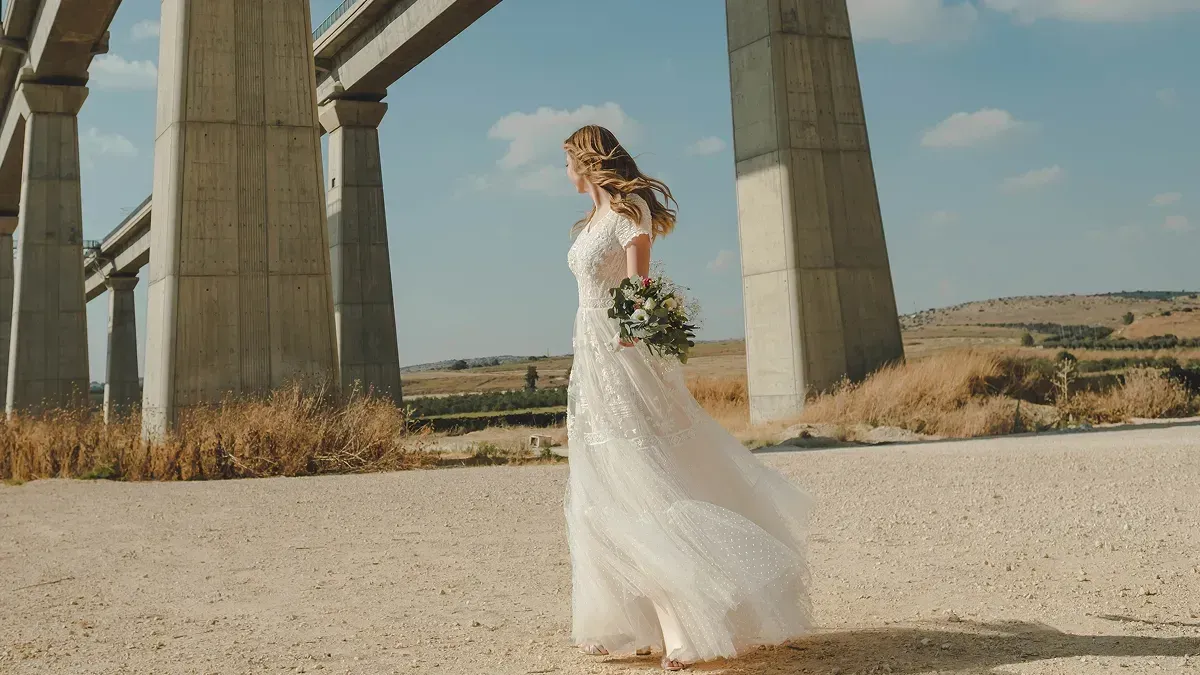
Why Engagement Editing Is Its Own Discipline
An engagement session sits between a casual portrait shoot and the full wedding day, and it carries its own editing demands. The couple is often new to being photographed together, so you shoot a wide take to catch the relaxed, genuine moments between the posed ones. A single session commonly spans two or three locations, an outfit change, and shifting light from open shade to golden hour, which means your color and exposure decisions have to travel cleanly across very different frames.
The goal is a gallery that looks polished and still feels like the couple. You want honest skin tone, flattering light, and a mood that matches the season and the setting, without the editing calling attention to itself. That balance, refined yet natural, is the craft of engagement editing, and it is why a repeatable system beats improvising every frame. For a focused primer on the tools side, our overview of how to edit engagement photos with AI pairs well with the workflow below.
Step 1: Import, Back Up, and Cull
Everything starts with getting your files in safely. Import the full session into your catalog, then back up to a second drive before you touch a single edit. An engagement shoot is a one-time capture that cannot be recreated on the same evening light, so two copies is the floor.
Culling is the first real bottleneck. An engagement session often fills 300 to 600 frames, many of them near-duplicates from the same pose as the couple settled into it. Your job is to trim to the strongest expressions, the cleanest connection between the two people, and the sharpest frames, then move on. Doing this by eye is slow, so AI culling helps here by flagging blinks, soft focus, and duplicate frames so you review a short list instead of the whole take. Imagen includes AI culling in the same workflow, which means you reach your selects faster and keep your energy for the creative calls. If you prefer to cull by hand, that is free as well.
Step 2: Set Exposure and White Balance
Engagement sessions are a white balance and exposure test because the light keeps changing. You might start in open shade under trees, move to a warm brick wall, and finish in direct golden-hour sun, and skin tone drifts the moment the color is off. Set a neutral, consistent white balance so skin reads warm and lifelike while each location keeps its real mood. This is the correction that most often shifts between scenes, so lock a reference frame for each lighting setup early.
Exposure matters just as much, because a backlit couple against a bright sky or a sunset flare can fool the meter. Protect the highlight detail while keeping faces bright enough to carry the connection between the pair. Get these two decisions right on a reference frame in each setup first, then carry them across that block of images so every photo starts from the same honest baseline.
Step 3: Apply Your Color Grade Across the Session
Once your exposure and color foundation is set, apply your signature grade to the whole session. This is where consistency is won or lost. Every frame should share the same tone, contrast, and color feel so the gallery looks like one continuous story rather than a stack of separate edits pulled from three locations. Holding that look across 200 or 300 frames by hand is slow and error-prone, which is exactly the work AI batch editing was built to remove.
This is where Imagen does the heavy lifting. It learns your personal editing style from your Lightroom or Capture One catalog, then applies that same look consistently across the full session in minutes. That learned look is your Personal AI Profile, and edited photos arrive in batches as they process, so you can start reviewing early frames while the rest finish. Because it learns from your own past edits, the result is your style at scale, not a generic filter. You stay in control of the creative direction while the repetitive grading is handled for you. For a deeper walkthrough of the ordering and timing, see our engagement photo editing workflow guide.
Step 4: Retouch Skin and Refine the Details
Retouching is where engagement work earns its polish. The aim is clean, natural skin that still has texture, not a plastic smoothing that erases the personality on a face. Work through the details that read closest to the viewer, then stop before the frame starts to look artificial. A good retouching pass covers the essentials without overdoing any single one.
- Even out skin tone and calm temporary blemishes while keeping natural texture and pores.
- Soften harsh under-eye shadows without flattening either face into a mask.
- Tame stray flyaway hairs that the outdoor breeze lifted across a forehead.
- Clean small distractions in the frame, such as a park sign, a stray branch, or clutter behind the couple.
- Brighten the eyes and refine catchlights just enough to add life to the connection.
AI retouching speeds this up by handling the first pass automatically, so you review and fine-tune instead of starting from zero on every frame. Imagen includes AI retouching in the same connected workflow as culling and editing, which keeps you from bouncing between three separate apps. It is worth being clear about what this is: Imagen edits, culls, and retouches the real photos you shot. It does not invent scenes, people, faces, outfits, or backgrounds, so the couple in the final image is always the couple you photographed, just refined.
Step 5: Hand-Finish the Hero Frames
Not every image needs the same attention. Once the full session carries your consistent look, pull the handful of hero frames that will open the gallery, print large, or land on the save-the-date and give them a manual finish. This is where a tool like Adobe Photoshop still earns its place, with precise dodging and burning, careful cleanup of a busy background, and detailed work that rewards a human touch. Many photographers also keep Adobe Lightroom in the loop for local adjustments and final tweaks on select frames.
The point of the earlier AI steps is to protect this time. When the repetitive grading and first-pass retouching are already done, you spend your manual hours only on the frames that truly deserve them, instead of grinding through the whole session. That is how you deliver faster without lowering your standard on the images that matter most to the couple.
Step 6: Export and Deliver
Finish by exporting in the sizes your clients need. Deliver full-resolution files for print and album work, plus web-sized versions for social sharing and online galleries. If the couple plans a save-the-date, export a few frames cropped for the layout their stationer needs so the design team has clean files to work from.
Do a final consistency check before you send. Scroll the full gallery at a uniform size and confirm the white balance, brightness, and skin tone match from the first location to the last. This last look catches the odd outlier and is the difference between a good session and a gallery that feels genuinely finished.
The AI Engagement Editing Tool Landscape
Most working portrait photographers do not rely on a single tool. They combine an AI editor for speed and consistency with a manual app for the frames that need a personal touch. Imagen is built for high-volume professional editing, since it learns your personal style and culls, edits, and retouches in one connected workflow, which fits the pace of shooting engagement sessions back to back through a busy season. Adobe Lightroom remains the catalog and local-adjustment backbone many photographers already live in, and it pairs naturally with an AI editor for final tweaks. Imagen’s built-in editor (Beta) now handles quick manual tweaks such as sliders, crop and straighten, so small fixes can stay in one place. Adobe Photoshop stays the choice for detailed, pixel-level cleanup on the hero frames. A common stack pairs Imagen for culling, batch grading, and first-pass retouching with Lightroom or Photoshop for the finishes.
Pricing is worth planning around. Imagen is pay-as-you-go: exploring the tools is free, and you pay for what you export. That structure suits session volume, since the export charge tracks directly with the shoots you deliver. Other tools price differently, from subscriptions to one-time licenses to per-image credits, so weigh how each model scales with your booking count. For more tutorials and comparisons, browse the Imagen valuable tips hub.
Try Imagen on Your Next Engagement Session
If speed and a consistent signature look are your priorities, the easiest way to feel the difference is to run a real engagement session through it. Imagen learns your personal editing style from your Lightroom or Capture One catalog, then culls, edits, and retouches your actual session photos in one project in its new Studio. Explore the tools for free, and see how much of your editing week you get back.
What’s new in Imagen: Imagen is now an intelligent, agentic Studio for professional photographers: one project where you cull, edit, review and export in any order. For engagement sessions, ask the assistant in plain language to find the photos you need, and let AI filters such as blur and closed eyes narrow a long session. The Studio is rolling out gradually as a beta.
Frequently Asked Questions
What is the best way to edit engagement photos with AI in 2026?
The most efficient approach is a connected workflow that culls your session, applies your personal editing style across the full set, and retouches the hero frames. Imagen does this by learning your look from your own Lightroom or Capture One catalog and applying it consistently, which keeps the gallery cohesive across locations while cutting editing time from a long night to a short pass.
Does AI editing make engagement skin look fake?
It does not when the retouching keeps natural texture. A good AI retouching pass evens skin tone and calms blemishes while preserving pores and detail, so both people still look like themselves. You review and fine-tune the result, and you can dial the finish back on any frame that needs a lighter hand.
Will AI editing match my personal engagement style?
Yes, because Imagen applies your style rather than imposing its own. It learns from your existing edits and reproduces your signature tone, color, and contrast across the whole session. You still make the creative decisions and finish the frames that matter most by hand.
Does Imagen generate new engagement images?
No, Imagen edits the real photos you captured rather than generating new ones. It culls, color grades, and retouches your actual engagement frames and does not invent scenes, faces, outfits, or backgrounds. The final gallery stays a true record of the session, just cleaner and more consistent.
