

The Complete Guide to AI Cosmetics Photo Editing in 2026
Table of contents
- AI Cosmetics Photo Editing Guide (2026)
- What AI Cosmetics Photo Editing Actually Does
- Step 1: Import and Back Up the Shoot
- Step 2: Cull the Keepers With AI
- Step 3: Batch Color, Exposure, and White Balance
- Step 4: Retouch Packaging and Product Surfaces
- Step 5: Fine-Tune Per Photo and Export
- Other Tools Worth Knowing
- What to Look For in AI Cosmetics Editing Software
- Start Editing Cosmetics Catalogs Faster
- Frequently Asked Questions
AI Cosmetics Photo Editing Guide (2026)
AI cosmetics photo editing speeds up the slow parts of a beauty product shoot by culling the keepers, applying your personal color and tone across the whole catalog, and cleaning up small blemishes with a light hand, so you spend minutes at the desk instead of whole evenings matching lipstick reds frame by frame. For professional product photographers who shoot hundreds of SKUs per session, the fastest path is a tool that learns how you already edit and repeats it consistently, and that is exactly what Imagen is built to do. This guide walks the real editing workflow step by step, from import to export, and shows where AI saves the most time while keeping every shade, finish, and label true to the actual product on set.
What AI Cosmetics Photo Editing Actually Does
AI cosmetics photo editing works on the real photos you shot in the studio. It edits, culls, and retouches your actual frames, and it adjusts color, exposure, white balance, and tone so a lipstick, foundation, or serum bottle reads the same across the whole line. It does not invent products, labels, packaging, textures, or backgrounds that were never in front of the lens. That distinction matters for beauty work, because a customer expects the shade she sees online to match the shade that ships to her door. A good AI editor reads your catalog, matches the exposure and white balance you prefer, and carries a consistent look across every image in the set.
Imagen learns your personal editing style from your Lightroom or Capture One catalog and applies it consistently across a full shoot. It pairs that batch styling with AI culling and AI retouching inside one connected workflow, so you are not bouncing between three separate apps to finish a product catalog. The result reads like your hand, because it is trained on your past edits rather than a generic preset, and it stays honest to the real jars, tubes, and compacts you photographed.
Step 1: Import and Back Up the Shoot
Every clean edit starts with a clean import. Offload your cards to a working drive, then copy the same files to a second location before you touch a single slider. A commercial cosmetics session is booked studio time, so two copies protect you against a corrupt card or a failed disk. Keep your raw files organized by brand, product line, and date, and give each SKU its own folder so your AI tool has one tidy catalog to read.
- Copy raw files to a working drive and a backup drive before editing.
- Name folders by brand, product line, and shoot date for fast retrieval later.
- Import into Lightroom or Capture One so your styling engine can read the catalog.
- Shoot a gray card or color target at the start so your white balance has a reference.
Once the files are safe, you can hand the heavy lifting to AI with confidence. Nothing you do in the next steps overwrites your originals, because the editing lives in adjustments rather than in the pixels of the raw file. That safety net matters when a client asks for the untouched shot of a specific shade later.
Step 2: Cull the Keepers With AI
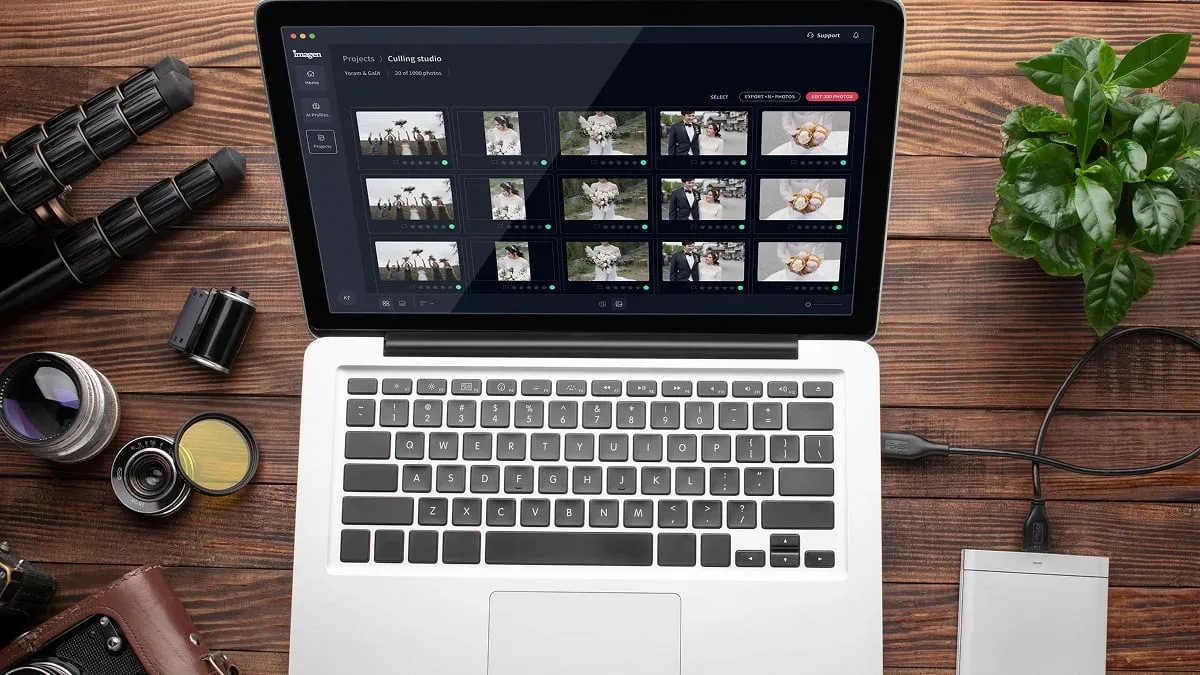
A cosmetics session often produces 400 to 900 frames, since you bracket exposures, shoot several angles per product, and repeat each SKU to catch a clean reflection. Culling by hand is where most photographers lose an hour or more per catalog. AI culling scans the set, groups similar frames, and flags the sharpest and best exposed option for each product, while catching soft focus and blown highlights on glossy packaging. You still make the final call, but you review a smart shortlist instead of squinting at every near duplicate.
Imagen runs culling as part of the same workflow that later styles and retouches your images, and you can also skip AI culling and cull manually for free. You approve or adjust its picks, and those selected frames flow straight into batch editing. That connection removes the export and re-import shuffle that slows down a multi-app setup, so a catalog that once took an evening can move toward delivery in a fraction of the time.
Step 3: Batch Color, Exposure, and White Balance
Color accuracy is the whole game in beauty photography. A red needs to stay the same red from the compact to the swatch to the lifestyle shot, and a neutral foundation cannot drift warm on one frame and cool on the next. This is the step where AI earns its keep, because it applies your look to hundreds of photos at once instead of asking you to sync settings SKU by SKU. Set your white balance against the gray card you shot, then let the batch pass carry that neutral base across the catalog.
Imagen builds a Personal AI Profile from your own past edits, then applies that style across the full catalog in one pass. It reads how you handle exposure, contrast, warmth, and saturation, and it repeats those choices consistently, so a matte finish stays matte and a metallic cap keeps its true sheen. Edited photos arrive in batches as they process, so you can start reviewing early frames while the rest finish. Because the profile is yours, the batch result looks like you graded every image by hand, which is the outcome a beauty brand recognizes when it lines your shots up on a product grid.
After the batch pass, scan the catalog at thumbnail size. You are checking that the shades hold steady and that no frame drifts too warm or too cool against the rest of the line. Small outliers are normal, and you will handle them in the per-photo step that follows.
Step 4: Retouch Packaging and Product Surfaces
Cosmetic packaging shows every flaw under studio light. Glossy caps catch dust, mirrored compacts pick up fingerprints, and a lipstick bullet can carry a stray smudge from handling. The goal is to clean up these real, temporary distractions while keeping the true texture and finish of the product, so a customer sees an honest representation of what ships. AI retouching handles the routine cleanup across the catalog, and you reserve your manual attention for the hero images headed to a homepage banner.
- Remove dust specks and lint from glossy caps and reflective surfaces.
- Clean fingerprints and smudges off mirrors, glass bottles, and metallic packaging.
- Keep the real finish intact, whether the product is matte, satin, or high gloss.
- Save deep, manual retouching for the few images that will print large or anchor a campaign.
Imagen applies AI retouching within the same connected workflow as culling and styling, so cleanup rides along with the batch rather than becoming a separate project. Because it works on your real frames, it refines the photograph you took instead of generating a new bottle or a fake label. For a hands-on walkthrough of shade-accurate cleanup, our companion piece on how to edit cosmetics photos with AI covers the retouching choices in more detail.
Step 5: Fine-Tune Per Photo and Export
Batch editing gets you most of the way, and the last stretch is per-photo polish on the frames that need it. Straighten a tilted bottle, nudge a crop to center the label, and correct a single warm outlier that the batch missed. These small moves take seconds each once the heavy work is done, because you are refining a nearly finished catalog rather than building each image from zero, and Imagen’s built-in editor (Beta) covers them with sliders, a histogram, and crop and straighten tools. When you finish, you can export finished JPG, TIFF or PNG files straight from Imagen, or send AI edits back to Lightroom Classic as XMP. Check each hero shot against the physical product one last time so the shade on screen matches the shade in your hand.
When the set looks right, export at the resolution each channel needs. Deliver full resolution files for print and packaging proofs, a web sized set for the product pages, and square crops for social. Keep a consistent naming scheme tied to each SKU so the brand can drop your files straight into a store, and archive the finished catalog alongside your raw backups. For a related niche where the same color discipline applies, our AI jewelry photo editing guide pairs well with this workflow.
Other Tools Worth Knowing
Imagen is not the only software in a product photographer’s kit, and a few others handle specific jobs well. Adobe Lightroom remains the standard catalog and raw developer, and many photographers keep it as the home base that Imagen reads from. Capture One is a strong choice for tethered studio sessions and precise color control, which beauty work leans on heavily. For occasional heavy compositing or complex label cleanup on a single hero frame, a dedicated pixel editor gives you manual, brush-level control.
These tools price their plans in different ways, from subscriptions to one-time licenses to per-image credits, so compare their models against how many catalogs you deliver each month. The point is fit, not brand loyalty. Where Imagen stands apart for high-volume cosmetics work is the combination of style learning, culling, and retouching in one connected pass, which keeps a busy commercial studio moving through SKU after SKU.
What to Look For in AI Cosmetics Editing Software
Not every AI editor suits color-critical beauty work. Prioritize software that respects true shades, keeps your style consistent, and works on your real photos rather than generating new ones. The features below separate a professional workflow tool from a novelty filter.
- Style learning from your own catalog, so every product line matches your existing look.
- Batch consistency that holds shades even across hundreds of frames and multiple SKUs.
- Accurate white balance control so reds, neutrals, and metallics stay true to the real product.
- Retouching that cleans dust and smudges while preserving the genuine finish.
- A connected workflow that avoids constant exporting between separate apps.
Imagen covers each of these needs, and its pricing keeps it practical for a growing studio. You can edit pay-as-you-go, paying for the photos you export. You see every edit in the gallery before you export, so you can run a real product line through the workflow before you commit. Browse more workflow guides on the Imagen valuable tips hub when you are ready to refine other parts of your process.
Start Editing Cosmetics Catalogs Faster
A clean, color-accurate cosmetics catalog no longer needs a full evening at the desk. When AI handles culling, batch color, and surface retouching on the real frames you shot, you get delivery-ready images in a fraction of the time and keep every shade true to the product. Try Imagen’s new Studio, where you cull, edit and export in one project, on your next product line and see the difference for yourself at Imagen.
What’s new in Imagen: Imagen is now an intelligent, agentic Studio for professional photographers, built around one project where you cull, edit, review and export in any order. For big cosmetics shoots, AI filters such as blur help you narrow the set, and the assistant can find photos when you ask in plain language and act on them while you keep steering. The Studio is rolling out gradually as a beta. Explore Imagen to learn more.
Frequently Asked Questions
Does AI cosmetics photo editing change the product’s real color? No, the goal is the opposite. It corrects white balance, exposure, and tone so the shade on screen matches the actual product you photographed, and it does not invent a new label, package, or color that was never on set.
Can AI keep shades consistent across a whole product line? Yes, that is the core benefit. Imagen learns your personal style from your Lightroom or Capture One catalog and applies it across the full shoot, so a red stays the same red and a neutral foundation holds its tone from the first frame to the last.
How much does Imagen cost for product photographers? Imagen uses pay-as-you-go pricing, where you pay for the photos you export. You see every edit in the gallery before you export, so you can test it on a full catalog first.
Does Imagen generate fake product images? No, Imagen edits the real photos you shot. It culls, color-grades, and retouches your actual frames, and it does not create synthetic products, packaging, or backgrounds, so your catalog stays an honest record of what the customer receives.

