

AI Business Portrait Photo Editing Tips and Techniques for 2026
Table of contents
- AI Business Portrait Photo Editing Tips
- Cull First So You Only Edit the Keepers
- Lock a Personal Editing Style and Apply It to the Whole Set
- Get Skin Tones and Lighting Even Across Every Face
- Retouch With Restraint for a Professional Result
- Keep Crops, Framing, and Backgrounds Consistent
- Batch the Full Shoot, Then Finish the Hero Frames
- Export in the Right Formats for Corporate Delivery
- Why Imagen Fits Business Portrait Editing
- Frequently Asked Questions
AI Business Portrait Photo Editing Tips
The fastest way to edit business portraits well is to lock a single consistent look, let AI handle the repetitive culling, color, and retouching across the whole set, and reserve your manual time for the few hero frames that need it. That approach keeps every executive headshot on brand and cuts a full corporate shoot from hours of clicking down to a short review. In this guide you get practical, workflow tested tips for editing corporate and executive portraits with AI, and you see where Imagen fits as the tool that automates the slow steps while you stay in control of the final result.
Business portrait work rewards consistency more than any single dramatic edit. A leadership team page looks professional when every face shares the same tone, contrast, and crop, so your process matters as much as your eye. These tips walk the real editing order, from import to export, and they apply whether you shoot ten headshots or a company of three hundred. For a deeper procedural walkthrough, pair this with our step by step guide to editing business portrait photos with AI.
Cull First So You Only Edit the Keepers
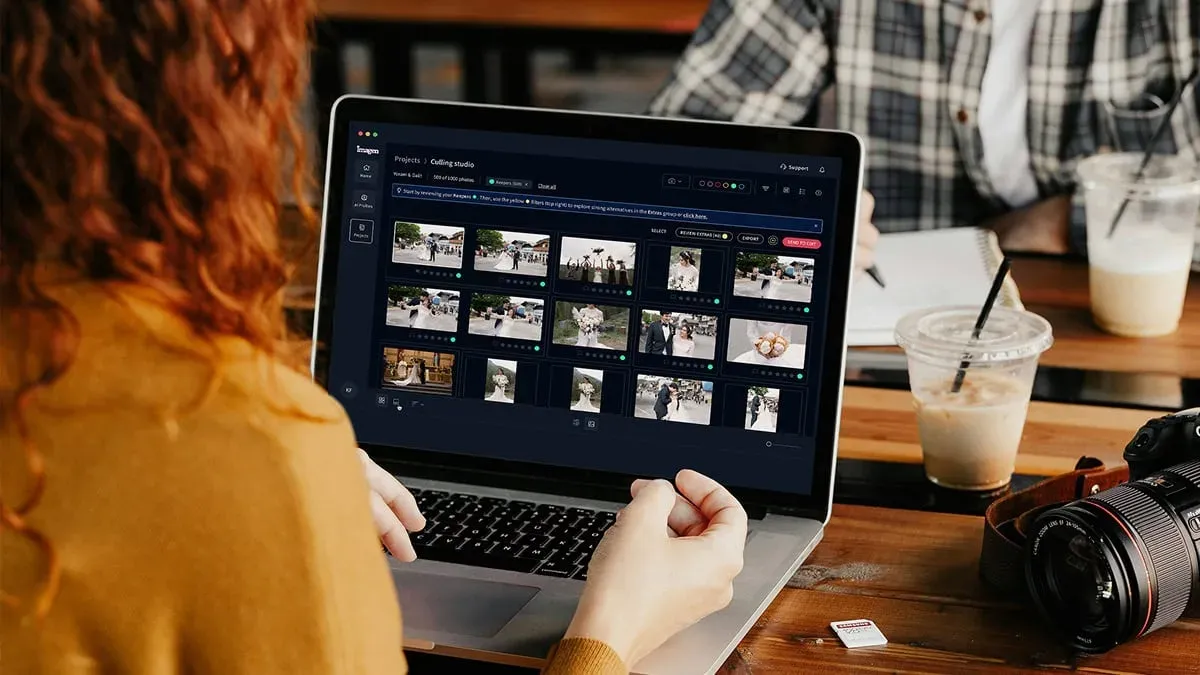
Culling before you edit saves the most time on a business portrait job. A single subject often gives you 20 to 40 frames per setup, and most of those are near duplicates with a blink, a soft smile, or a slightly closed eye. AI culling scans the set, groups similar frames, and flags the sharpest, best exposed options, so you approve a shortlist instead of studying every raw file. Imagen runs this culling on your imported catalog and marks its picks, and you keep the final say on which frame represents each person. If you prefer to cull by hand, manual culling in Imagen is free.
- Import the full shoot before you cull, so the AI compares every frame of each subject together.
- Reject obvious blinks and motion blur first, then choose one primary and one backup per person.
- Keep an alternate expression for anyone senior, since stakeholders often want a choice.
Lock a Personal Editing Style and Apply It to the Whole Set
Consistency is the whole game for corporate portraits, and it starts with a defined look. Decide your target for skin rendering, contrast, white balance, and background brightness once, then apply that same treatment to every keeper. Imagen learns your personal editing style from your existing Lightroom or Capture One catalog, so it studies how you already finish portraits and then edits the full shoot to match. Instead of copying one develop setting and nudging each file, you get an edit that reflects your taste across the entire team in one pass. Edited photos arrive in batches as they process, so you can start reviewing early frames while the rest finish.
Build your style from a set of portraits you are proud of, ideally a mix of skin tones and lighting so the model generalizes well. Once the look is set, a new corporate shoot lands already edited to your standard, and you spend your time reviewing rather than starting from a flat raw file. This is where AI editing beats manual preset stacking, because presets treat every frame the same while a learned style adapts to each exposure.
Get Skin Tones and Lighting Even Across Every Face
Nothing exposes an inconsistent edit faster than a row of headshots with mismatched skin tones. One face reads warm, the next looks cool, and the team page falls apart. Set your white balance intent in your style so the AI holds tone steady from person to person, then spot check the extremes, meaning your lightest and darkest subjects. Business portraits usually want natural, flattering skin rather than heavy stylization, so aim for clean and true rather than punchy.
Even lighting matters just as much. If you shot everyone on the same setup, a learned style keeps exposure and contrast aligned automatically. If lighting drifted between sessions, review those frames as a small group and confirm the AI brought them back in line before you finish. The goal is that any two portraits placed side by side look like they came from the same photographer on the same day.
Retouch With Restraint for a Professional Result
Executive portraits call for light, believable retouching, not a glossy beauty edit. The aim is a clean, confident version of the real person, so you smooth temporary blemishes and calm distractions while keeping skin texture, lines, and character intact. AI retouching handles the repetitive cleanup across the whole set at once, which is exactly the part that eats manual hours when you do it face by face in a pixel editor like Photoshop.
Imagen applies retouching as part of the same connected workflow that culls and edits, so skin cleanup, tone, and style all come from one pass rather than three separate tools. Keep your settings conservative for corporate work, then open only the hero frames for any extra manual touch. It is worth stating plainly that Imagen edits and retouches the real portraits you photographed. It does not invent faces, expressions, or backgrounds, which keeps every headshot an honest representation of the person.
- Remove temporary spots and stray hairs, and reduce shine on the forehead and nose.
- Keep pores, fine lines, and natural skin texture so the portrait still looks real.
- Match the retouch strength across the whole team so no single person looks over processed.
Keep Crops, Framing, and Backgrounds Consistent
A professional set of business portraits shares more than color, it shares composition. Decide your crop ratio and headroom in advance, and frame each subject the same way so headshots line up cleanly in a grid. If your background is a seamless or a branded color, confirm its brightness and tone stay identical across every frame, since a drifting backdrop is one of the most visible flaws on a team page.
When you review the edited set, scan the backgrounds as their own layer of the check. Your AI edit holds tone steady, and your job is to catch any frame where a subject stood closer to the light or cast a different shadow. Fix those few outliers rather than re-editing the whole batch, and your gallery stays uniform with far less effort.
Batch the Full Shoot, Then Finish the Hero Frames
The efficient rhythm for corporate portraits is batch first, finish second. Let the AI edit, cull, and retouch the entire shoot in one connected pass, then review the results as a set. Ninety percent of your frames will be delivery ready, and you focus your manual attention on the handful of hero portraits that go on the leadership page or the annual report. This split is how a large company shoot goes out the door in a fraction of the usual time.
Because Imagen can send its AI edits back to Lightroom Classic as XMP, your adjustments stay non destructive and fully editable. You can accept the AI edit as your starting point and then fine tune exposure or a local retouch on the few frames that deserve it in Lightroom Classic, or adjust exposure and crop in Imagen’s built-in editor (Beta). That combination of automated consistency plus manual control on the important frames is what makes AI practical for professional work rather than a shortcut you have to fight.
Export in the Right Formats for Corporate Delivery
Business clients rarely want one file, so plan your export before you deliver. A typical corporate order needs a high resolution version for print, a web sized version for the company site and LinkedIn, and often a square crop for profile use. Set these export presets once and apply them to the whole approved set, so every person receives the same formats named and sized the same way.
- Deliver a full resolution master for print and archive, in a color space your client can use.
- Add a web optimized version around 1000 to 2000 pixels for site and social profiles.
- Include a square crop when the client needs consistent avatars across their team directory.
Standard editing tools such as Lightroom and Capture One handle these export presets well, and when your AI edit is already consistent, the export step becomes a simple final action rather than a place where quality slips. For more examples of a complete production flow, read our full AI business portrait photo editing guide, and browse more tutorials on the valuable tips hub.
Why Imagen Fits Business Portrait Editing
Imagen brings culling, style based editing, and retouching into one connected workflow, and it learns your personal look so a full corporate shoot comes back edited to your standard. That is a strong match for business portraits, where consistency across many faces is the entire point. You can send the AI edits back to the Lightroom Classic catalog you already use, and you keep every edit reviewable and adjustable.
Pricing is straightforward pay-as-you-go: you pay for the photos you export. Sliders, crops, and masks you do yourself are always free. Ready to try it on your next corporate shoot? Start editing with Imagen and its new Studio, where you cull, edit and export in one project.
What’s new in Imagen: Imagen is now an intelligent, agentic Studio for professional photographers, so culling, editing, review and export share one non-linear project instead of a fixed sequence. Hand corporate clients finished JPG, TIFF or PNG files exported straight from Imagen, or send the AI edits back to Lightroom Classic as XMP if that is where you deliver from. The Studio is rolling out gradually as a beta.
Frequently Asked Questions
How does AI keep a team of headshots consistent?
AI keeps a team consistent by applying one learned editing style to every frame instead of tuning each file by hand. Imagen studies how you already finish portraits and then edits the whole shoot to match, so skin tone, contrast, and background brightness stay aligned from the first person to the last. You review the set and correct only the few outliers.
Will AI retouching make executives look fake?
Not if you keep the settings conservative, which is the right choice for corporate work. Aim to remove temporary blemishes and shine while preserving skin texture and natural features. Imagen retouches the real photo you shot and does not invent faces or backgrounds, so the result is a clean, believable version of each person rather than a glossy over edit.
Do I have to leave Lightroom or Capture One to use AI editing?
No, Imagen works with your existing Lightroom or Capture One catalog, so your edits stay non destructive and fully adjustable. The AI edit becomes your starting point, and you can fine tune any frame using the tools you already know. Nothing forces you to abandon your current library or your export presets.
How much does it cost to edit business portraits with Imagen?
Imagen uses pay-as-you-go pricing: you pay for the photos you export, so a full headshot session costs what you deliver.

