
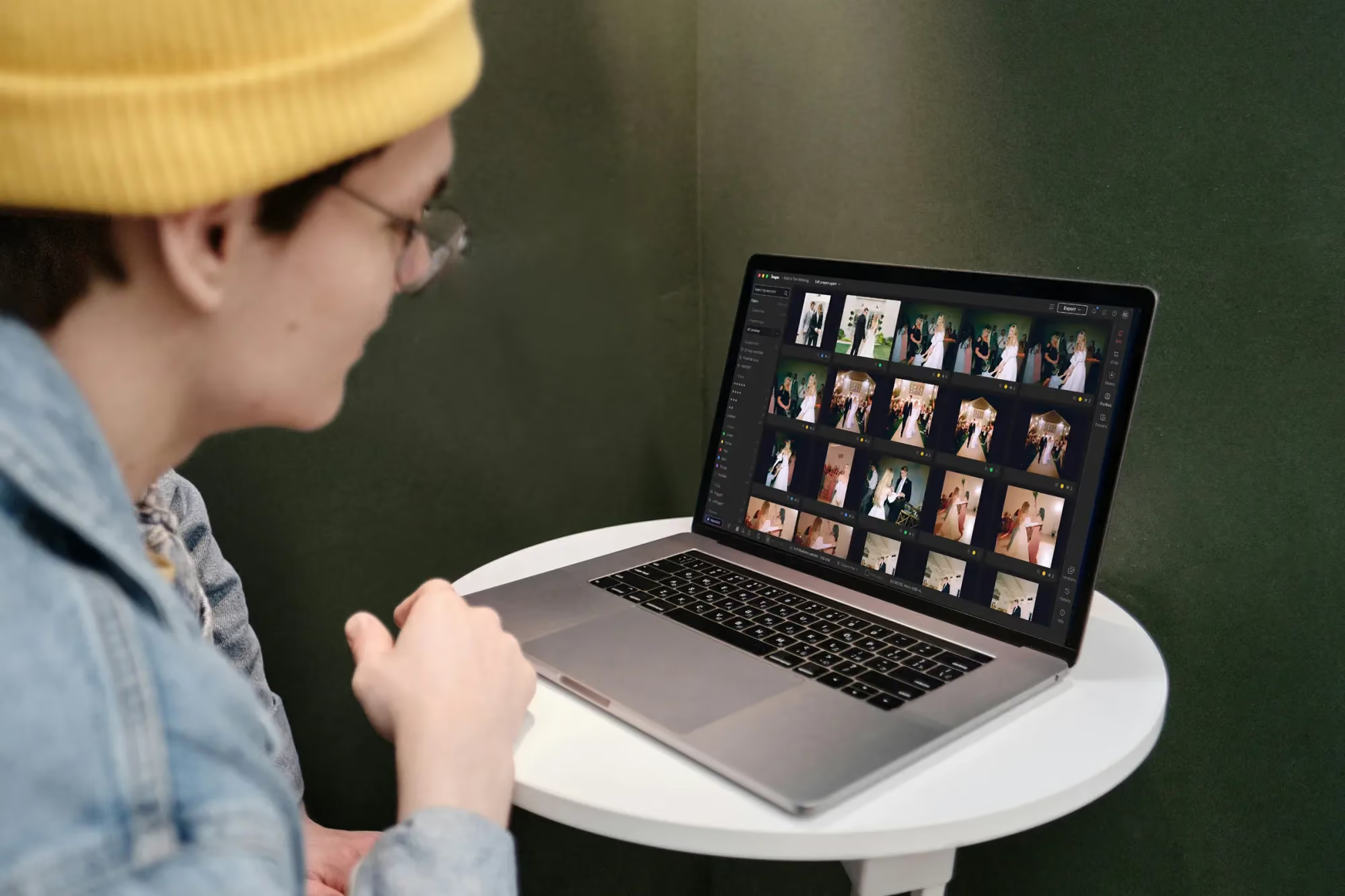
How AI Batch Culling Works
Table of contents
Culling is the part of the job nobody enjoys and everybody has to do. Before a single photo gets edited, someone has to look at every frame from a shoot and decide which ones are worth keeping. AI batch culling exists to take the first, most repetitive pass off your plate, so the manual attention you do spend goes toward the calls that actually need a human eye. Here is how it works inside Imagen, and what stays in your hands regardless.
Start with a simple example: a two-hour portrait session produces six hundred frames because you shoot in bursts to catch the right expression. Most of those six hundred are near-duplicates of a much smaller number of genuinely different moments. Batch culling looks at the whole set at once and gives you a fast first pass through that repetition, instead of asking you to compare all six hundred frames one at a time.
Scale that up to a wedding, where burst shooting across a full day can easily produce two or three thousand frames, and the same problem gets much bigger without getting fundamentally different. The ceremony alone might include a dozen near-identical frames of the ring exchange, shot in a burst to make sure at least one is technically perfect. Someone still has to pick the one that goes in the gallery. Batch culling exists so that “someone” spends less time on the picking-through and more time on the actual pick.
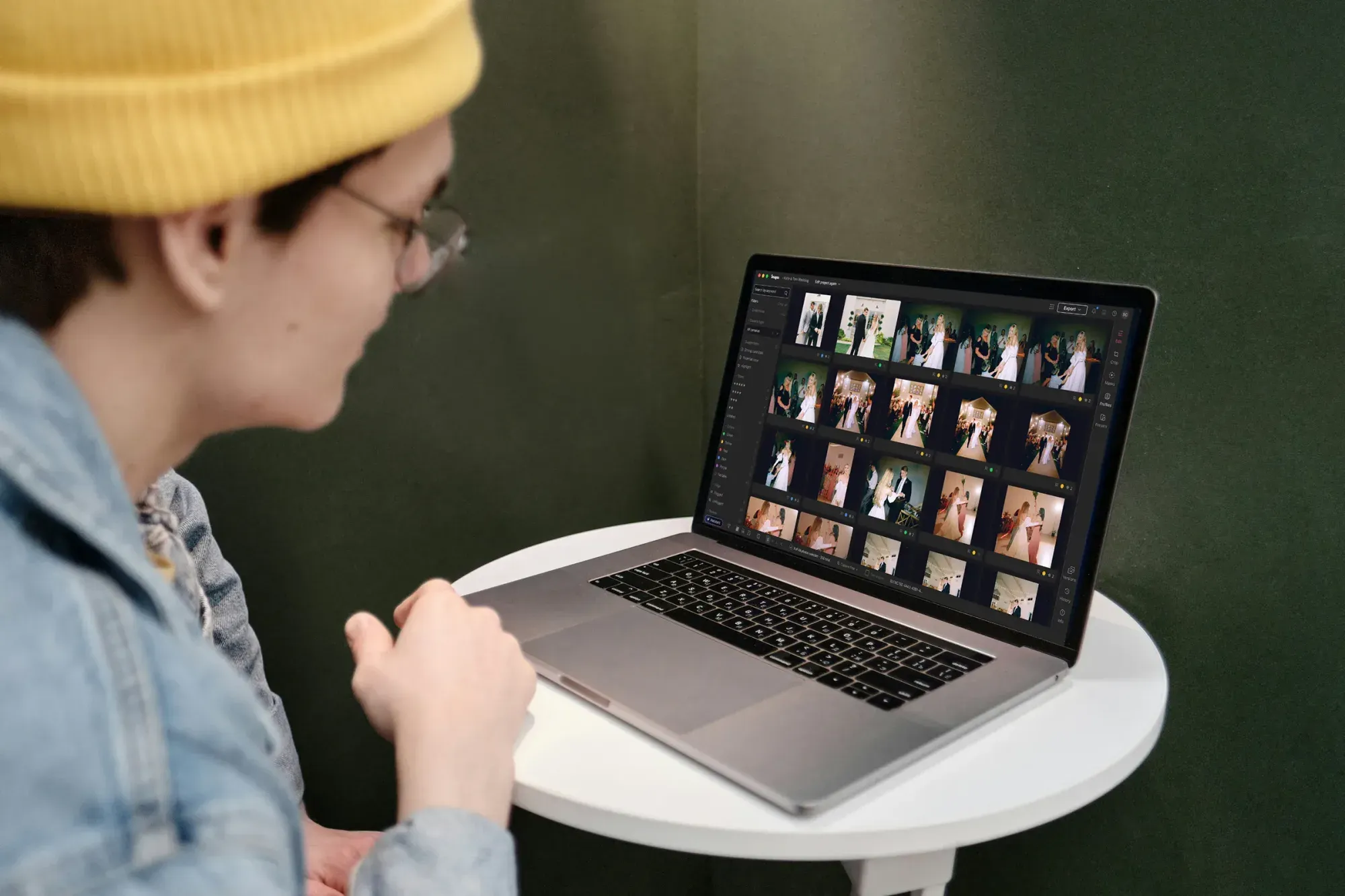
What batch culling is for
The core job of batch culling is narrowing a large shoot down to a working set quickly, so you are not starting your review from the full, unsorted pile. It runs across an entire batch of uploaded photos as part of the same non-linear project where you also edit, review, and export, rather than living in a separate app you have to move files into and out of. The output is a first-pass selection you can accept, adjust, or override, not a final decision that gets made without you.
That distinction matters. Batch culling is a starting point built to save you time on the repetitive part of the job. It is not designed to be the last word on which photo makes it into a gallery.
It also means batch culling is opt-in territory rather than a gate you have to pass through. Some photographers apply it to every shoot without exception. Others reach for it only on the shoot types that genuinely produce heavy burst redundancy, like weddings and events, and cull everything else by hand. Both are reasonable ways to use the same tool.
How the first pass works
When a shoot uploads, batch culling looks across similar frames, the kind produced by burst shooting or multiple attempts at the same pose or moment, and surfaces the strongest candidates from each group for your review. Think of it as doing the sorting you would otherwise do by eye: setting aside the frames that are clearly redundant once you have a better version of the same moment, so you spend your attention on the shots that are genuinely different from each other.
You still see the full set if you want it. Nothing about batch culling hides photos from you permanently. It simply orders your attention so the redundant comparisons happen fast and the real decisions get the time they deserve.
It is worth being precise about what “similar” means here, since it is easy to assume too much. The system is comparing frames from the same burst or the same brief window of shooting, not trying to guess what scene or moment a photo belongs to. A ceremony kiss and a reception first dance are both just frames to this part of the process; it is looking at redundancy within a group of near-identical shots, not classifying the event around them.
Why it is faster now
The culling and editing models behind the Studio have gotten faster, which shows up most clearly on large galleries. That speed pairs with eager editing, which delivers edited photos in batches by timestamp as they finish processing rather than making you wait for an entire shoot to complete. In practice, that means you can be culling and reviewing the earliest portion of a shoot while later frames are still being processed, instead of watching a single progress bar before you can do anything at all.
For a same-day delivery, that difference is not a minor convenience. Getting a first-pass selection from the earliest part of a shoot while the rest of the gallery continues processing can be the gap between sending a sneak peek gallery that evening or waiting until the next morning to start.
You can still cull manually, for free
Batch culling is a choice, not a requirement. If you would rather review a shoot yourself from the start, you can skip AI culling entirely when you set up a project and cull manually at no cost. That matters for the sessions where you already know exactly what you want, or where the style of shoot does not suit an automated first pass as well as, say, a large event does.
Culling a shoot inside the Imagen project view
- Skip AI culling at project setup and work through the gallery by hand from the beginning.
- Rate, flag, and search manually, all without any charge, in the same project as everything else.
- Mix the two approaches: let batch culling run on part of a shoot and review another part manually, depending on what each portion needs.
None of these choices are permanent, either. A project you start with AI batch culling can still get a manual pass afterward, and a project you start manually never locks you out of the automated tools if you change your mind halfway through. The two approaches share the same project rather than living in separate modes you commit to upfront.
What happens after the first pass
Once batch culling has done its first sweep, the photos it surfaces move straight into the rest of the project. There is no export step to a different tool and no separate culling file to reconcile with your edits later. You can apply your Personal AI Profile to the selects, branch a version to try an alternate treatment, adjust composition with crop and straighten, and export when you are ready, all without leaving the project the culling happened in.
If the assistant is part of your workflow, it can help here too. Once culling has produced a working set, you can ask it to pull specific frames from that set in plain language, such as every photo already rated five stars, which narrows things further before you sit down for a detailed pass.
From there, the usual editing tools apply without any adjustment for the fact that culling happened automatically. Manual sliders, crop and straighten, presets, and versions all work on a batch-culled selection exactly as they would on a manually culled one, because the project does not treat the two paths differently once you are past the first pass.
Batch culling and your existing catalog
One question worth asking before you lean on batch culling heavily: what happens to your ratings and flags if you later move photos to Lightroom or another tool. Ratings, flags, color labels, and culling decisions you make inside Imagen stay with that project. AI Profile and AI-tool edits carry over to Lightroom as XMP when you export that way, so your culling work is not stranded if your delivery workflow eventually leaves Imagen for part of the process.
Getting the most out of batch culling
A few habits make batch culling more useful in practice. Let it run on the shoots where it earns its keep most, typically anything with heavy burst shooting or large volume, like weddings and events. Always glance through what it set aside, at least briefly, since a fast first pass is meant to save time, not make a final decision without your sign-off. And remember that manual culling stays free and available in the same project, so switching approaches mid-shoot costs you nothing. For more on building a full culling and editing routine, the valuable tips library has practical breakdowns worth reading before your next big shoot.
What’s new in Imagen: Imagen is now an intelligent, agentic Studio for professional photographers, one project where you cull, edit, review, and export together. Let AI culling take the first pass, or skip it and cull manually for free, and use AI filters such as blur and closed eyes to narrow what is left. The Studio is rolling out gradually as a beta.
Frequently asked questions
Does AI batch culling delete photos permanently?
No. It gives you a first-pass selection from a batch of similar frames, and you can always see and review the full set. Nothing is permanently hidden or removed without your say.
Do I have to pay to use batch culling?
Imagen prices on export, so exploring and culling itself is not what triggers a charge. Pay-as-you-go photographers pay for the photos they export, once they are ready to deliver.
Can I skip AI culling and do it all manually?
Yes. You can choose to skip AI culling when you set up a project and cull manually instead, at no cost, in the same non-linear project as your editing and export.
Does batch culling work differently on large galleries?
The approach is the same regardless of size, but the time saved grows with the shoot. Weddings, events, and large group sessions, where redundant, near-identical frames pile up fastest, see the biggest benefit from a fast first pass. Smaller, tightly controlled shoots often have less redundancy for an automated pass to usefully clear, so the time saved there is more modest.
Curious how batch culling handles your next shoot? Start a project in Imagen’s new Studio and try it at imagen-ai.com.
