

The Complete Guide to AI Bat Mitzvah Photo Editing in 2026
Table of contents
- What AI photo editing actually does for a bat mitzvah
- Step 1: Import, back up, and organize the shoot
- Step 2: Cull with AI, then confirm with your eye
- Step 3: Batch color in your own personal style
- Step 4: Finish key frames one photo at a time
- Step 5: Export, deliver, and archive
- Choosing the right AI editing tool for the job
- Common mistakes to avoid
- Frequently asked questions
This AI bat mitzvah photo editing guide gives you a clear, repeatable workflow to cull, color, and retouch a full celebration in a fraction of the usual time. The short version is that AI now handles the slow, repetitive parts of editing while you keep creative control, so tools like Imagen learn your personal style and apply it consistently across the entire event. A bat mitzvah is a meaningful family milestone, and the photos deserve careful, honest editing that stays true to how the day actually looked and felt.
Below you get the full pipeline, from import and culling through batch color, per-photo finishing, and delivery. You also get an honest look at where AI helps, where a human eye still matters, and which real tools fit each step. For deeper dives, this guide links to a focused walkthrough on how to edit bat mitzvah photos with AI and a complete bat mitzvah photo editing workflow.
What AI photo editing actually does for a bat mitzvah
AI photo editing learns patterns from real edits and repeats them at scale. It reads exposure, white balance, contrast, and color, then matches your choices across hundreds or thousands of frames. For a bat mitzvah, that consistency matters, because a single event mixes bright outdoor portraits, dim ceremony light, mixed venue tungsten, and a fast, colorful party. Manual editing forces you to solve those lighting shifts one frame at a time, and AI compresses that grind into a first pass you refine.
It helps to be precise about what these tools are. Imagen is not an image generator, and that distinction protects your credibility. It edits, culls, and retouches the real photos you shot, and it never invents scenes, guests, outfits, food, decor, or backgrounds. Nothing about the venue, the family, or the ceremony gets fabricated, so what you deliver reflects the real day. That honesty is exactly what families expect from documentary event coverage.
Step 1: Import, back up, and organize the shoot
Every strong edit starts with disciplined ingest. Import your raw files into Lightroom Classic or Capture One, then create a second backup before you touch a single slider. Bat mitzvah coverage often runs 1,500 to 4,000 frames across the ceremony, portraits, family groups, and the reception, so a lost card is a real risk you plan around from the start.
- Create a dated project folder named for the family and the event.
- Copy raw files to two drives, and confirm both copies open cleanly.
- Group images by scene, so ceremony, portraits, and party stay separate.
- Add basic keywords now, because they speed up delivery and future searches.
Clean organization pays off at every later step. When your folders map to real moments, batch color and retouching stay predictable, and you spend less time hunting for the shot the parents actually want printed.
Step 2: Cull with AI, then confirm with your eye
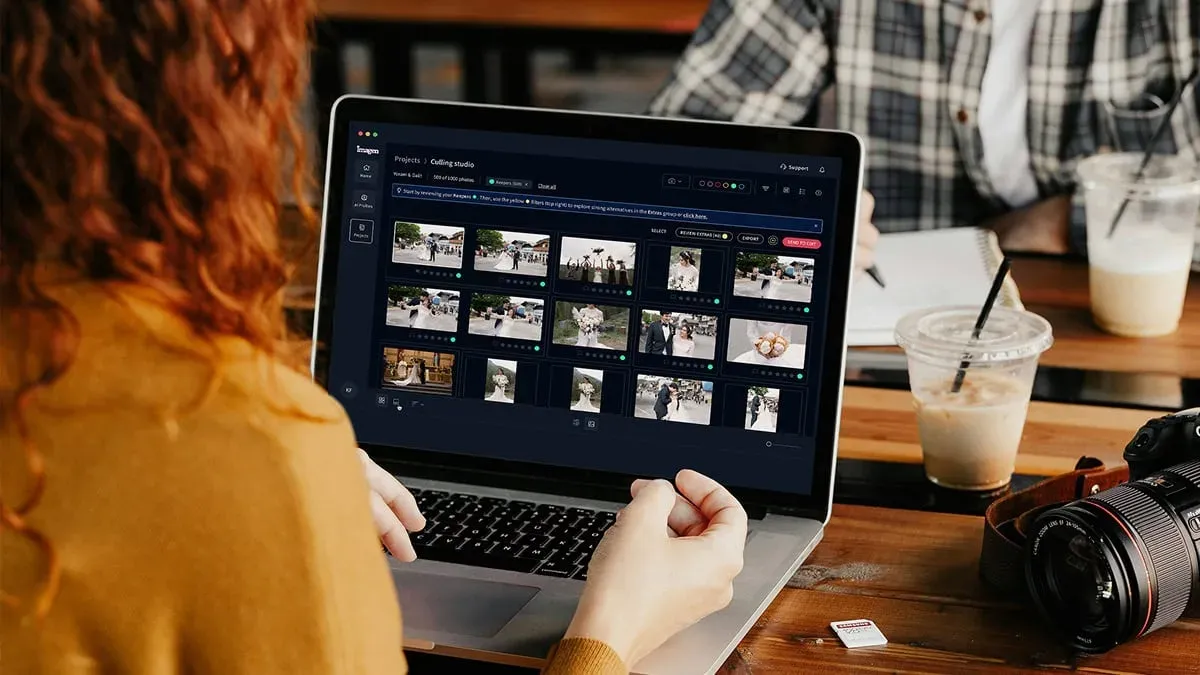
Culling is where most photographers lose their evening. AI culling scores images for focus, exposure, and closed eyes, then groups near-duplicate frames so you pick the best of each burst quickly. Imagen includes AI culling inside the same workflow as its editing, so you move from selects to a finished look without exporting to a separate app, and you can skip the AI step because manual culling in Imagen is free. Aftershoot is another real option that focuses specifically on culling and duplicate detection, and it fits photographers who want a dedicated selection step.
Let the AI propose selects, then review the emotional frames yourself. A bat mitzvah has moments a scoring model cannot rank, like the grandmother wiping a tear or the exact second of a nervous smile before the Torah reading. You keep those on purpose, even when a sharper frame exists nearby. The goal is speed on the easy calls and human judgment on the meaningful ones.
Step 3: Batch color in your own personal style
This is the step AI changes most. Imagen learns your personal editing style directly from your Lightroom or Capture One catalog, so it studies how you have edited past work and applies those same decisions across the full shoot. Instead of copying one preset onto every frame, it adapts exposure, white balance, and tone to each image while keeping your signature look. Warm ceremony light stays warm, cool evening portraits stay true, and the whole gallery reads as one coherent set. Edited photos arrive in batches as they process, so you can start reviewing early frames while the rest finish.
Consistency is the hardest thing to hold across a long event, and it is exactly where a personal style profile earns its place. A bat mitzvah gallery that jumps between warm and cool skin tones looks amateur, even when each single frame is fine. When your style travels with every image, the family sees a gallery that feels intentional from the first portrait to the last dance.
- Feed the AI a representative catalog, so it learns your real choices.
- Run the batch pass on a full scene, then scan for outliers.
- Adjust a few reference frames, and let the corrections propagate.
- Keep skin tones natural, because families notice unnatural color first.
Step 4: Finish key frames one photo at a time
After the batch pass, a handful of images deserve individual attention. The hero portrait, the family group, and the print candidates all reward extra care. AI retouching handles the repetitive cleanup here, like softening skin naturally, reducing shine under venue lights, and evening out distractions, while you decide how far each edit should go. Imagen includes AI retouching in the same connected workflow, so you retouch selects without bouncing between programs, and its built-in editor (Beta) covers quick manual tweaks with sliders, crop and straighten.
For heavier, layer-based work, Photoshop remains the standard, and dedicated retouching plugins like Retouch4Me speed up skin and portrait cleanup for photographers who want that specialized control. Keep retouching restrained on a bat mitzvah, because the subject is a young person and the goal is a natural, respectful portrait rather than a heavily reworked one. Clean the distractions, protect the likeness, and stop while it still looks like her.
Step 5: Export, deliver, and archive
Delivery is a technical step you standardize once and reuse forever. Export full-resolution files for prints and albums, and a web-sized set for the online gallery. Match your color space to the destination, so sRGB for screens and gallery delivery, and a wider space only when your lab requests it. Then archive the raw files and your final catalog, because families often return months later for extra prints.
- Export high-resolution JPEGs for the album and print orders.
- Export web-sized images for the online proofing gallery.
- Save your final catalog and presets with the project.
- Store two archive copies, and note the delivery date.
A tidy archive turns a one-time job into a lasting client relationship. When the reprint request arrives, you reopen a labeled project and deliver in minutes instead of hours.
Choosing the right AI editing tool for the job
The tool landscape splits into a few honest categories, and most working photographers combine two or three. Adobe Lightroom Classic is the base catalog where you import, organize, and export, and its subscription pricing is familiar to most pros. Aftershoot targets culling and duplicate detection as a dedicated selection step. Photoshop and plugins like Retouch4Me handle deep, layer-based retouching when a frame needs it. Imagen sits across the middle of the pipeline and works alongside Lightroom, because it learns your personal style, culls, batch edits, and retouches inside one connected workflow, and it can send AI edits back to Lightroom Classic.
On pricing, Imagen uses pay-as-you-go rather than a fixed subscription. You pay for the photos you export, and exploring the tools is free. That model fits event work well, because your editing cost scales with the size of each shoot instead of a flat subscription. You can test it on a real bat mitzvah gallery before you commit, which removes most of the risk from trying a new step. For more editing ideas across event and portrait work, browse the full Imagen valuable tips hub.
Common mistakes to avoid
Even a strong AI workflow fails when the fundamentals slip. Watch for a few recurring problems, and your galleries stay consistent and honest.
- Skipping the backup step, which risks the entire shoot on one card.
- Over-retouching a young subject, which erases the natural likeness families want.
- Applying one flat preset instead of a learned style, which breaks consistency.
- Trusting the AI cull blindly, which drops the emotional frames that matter most.
- Mismatching color space on export, which shifts colors between screen and print.
Each fix is small, and together they protect the finished gallery. You lean on AI for speed and keep your judgment on the choices that define the family’s memories.
What’s new in Imagen: Imagen is now an intelligent, agentic Studio for professional photographers, a single non-linear project where you cull, edit, review and export together, with the Assistant able to find photos when you ask in plain language. It works alongside Lightroom, so you can send AI edits back to Lightroom Classic or export JPG, TIFF or PNG files from Imagen. The Studio is rolling out gradually as a beta.
Frequently asked questions
How long does it take to edit a full bat mitzvah with AI?
A full gallery that once took a full day of manual work often drops to a couple of hours with an AI workflow. The culling and batch color passes handle the bulk quickly, and you spend your remaining time on hero frames and delivery. Your exact speed depends on shoot size and how much per-photo finishing you choose to do.
Will AI editing make the photos look fake or over-processed?
It should not, because tools like Imagen edit your real photos rather than generate new ones. The AI matches your own style choices, so the result looks like your work at scale, not a synthetic version of the event. You stay in control of retouching strength, and you keep young subjects looking natural and true to the day.
Does AI editing replace Lightroom or Capture One?
No, it works alongside them. You still import, organize, and export inside Lightroom or Capture One, and the AI reads your catalog to learn your style and apply the heavy editing. Think of AI as the fast engine inside your existing catalog rather than a full replacement for it.
Can I keep my personal editing style with AI?
Yes, and that is the main advantage of a style-learning tool. Imagen studies how you have edited past shoots and applies those same decisions across a new gallery, so your signature look stays consistent. You feed it a representative catalog, review the results, and refine a few frames to guide it.
Ready to speed up your next celebration gallery while keeping your own style? Try Imagen’s new Studio, where you cull, edit and export in one project, and explore it on a real bat mitzvah shoot from start to finish.
