

AI Actor Headshot Photo Editing Tips and Techniques for 2026
Table of contents
- AI Actor Headshot Photo Editing Tips
- Cull hard before you edit a single frame
- Set your headshot look once, then apply it everywhere
- Balance skin tone without erasing the actor
- Keep eyes, brows, and hairline sharp and honest
- Match framing and background to casting standards
- Retouch per photo only where it counts
- Export the right files for agents and casting sites
- Let AI automate the slow steps so you focus on craft
- Frequently Asked Questions
AI Actor Headshot Photo Editing Tips
The fastest way to edit actor headshots is to cull hard, set one consistent look, and let AI handle the repetitive color, tone, and skin work so you spend your time on the two or three frames that matter. A strong actor headshot reads as the real person in the room, so your editing should clean up distractions and even out light without changing who the actor is. This guide walks through a practical headshot workflow, from the first import to the final export, and shows where a tool like Imagen automates the slow steps while you keep full creative control.
Casting directors scan headshots in seconds, so consistency and honesty win. Every tip below is built for high volume, because a single casting session can produce hundreds of frames across several looks. If you want more background before you dive in, our walkthrough on how to edit actor headshot photos with AI pairs well with these tips, and you can browse the full valuable tips hub for related editing guides.
Cull hard before you edit a single frame
Culling is where most headshot editing time disappears, so tackle it first and tackle it ruthlessly. A typical actor session runs 300 to 800 frames across two or three wardrobe changes, and the actor usually needs 4 to 8 final selects for their casting profile. Your job is to find the frames where the eyes are sharp, the expression is genuine, and the pose supports the role the actor wants to book.
- Reject any frame with soft eyes, a mid-blink, or an awkward mouth position before you look at anything else.
- Group the survivors by look or wardrobe so each casting category has its own short list.
- Pick one hero frame per expression, such as a warm smile, a neutral commercial look, and a serious dramatic read.
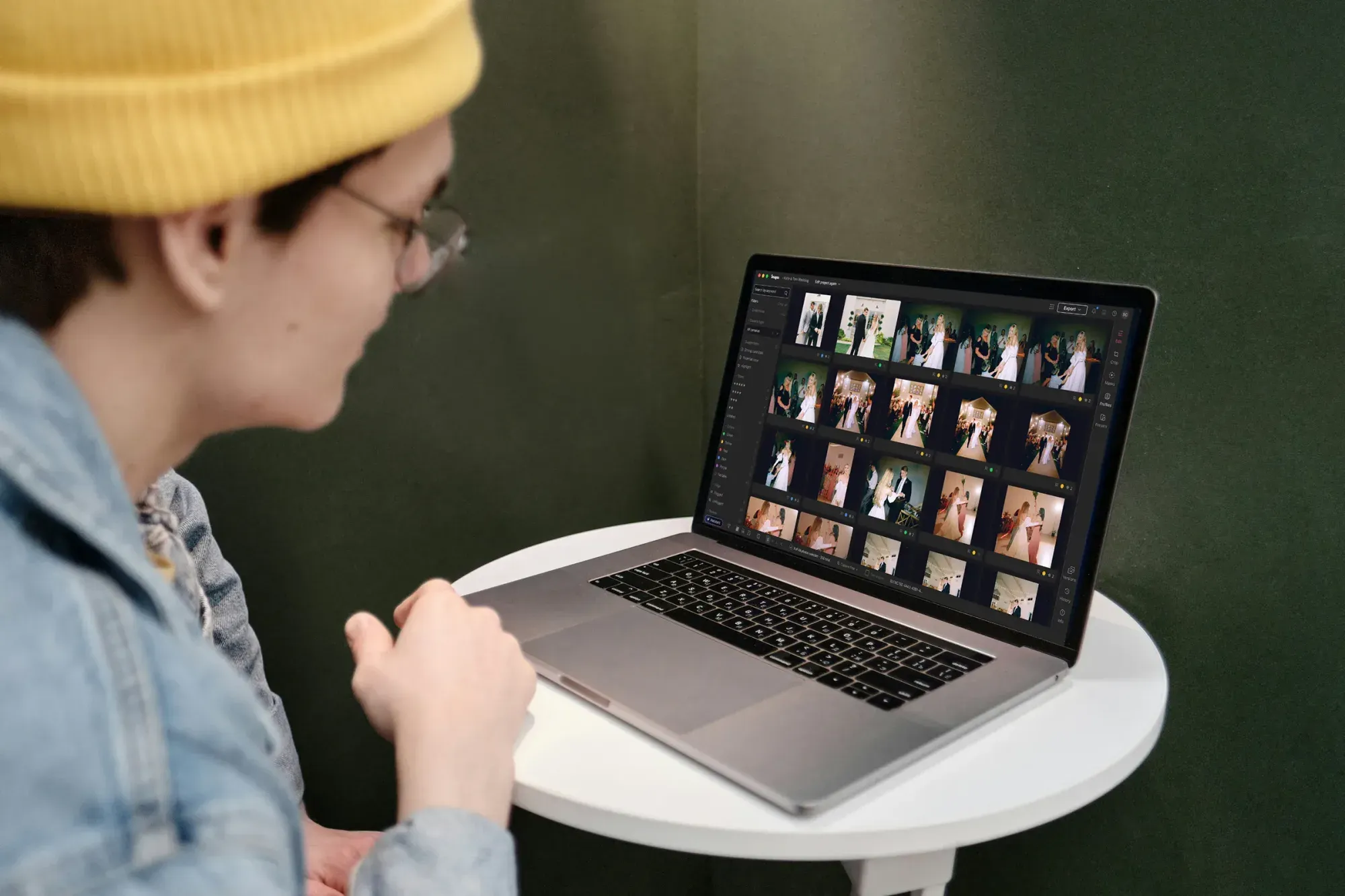
Imagen speeds this stage with AI culling that flags closed eyes, missed focus, and near-duplicate frames, so you review a clean shortlist instead of scrolling the entire take. Prefer to cull by hand? Manual culling in Imagen is free. You still make the final calls, because the actor and their agent care about nuance that only a human editor catches, but you reach those calls far faster.
Set your headshot look once, then apply it everywhere
Actor headshots live or die on consistency, because an agent often posts several of your images side by side. If one frame runs warm and the next runs cool, the set looks careless. Build your signature headshot look one time, then apply that same treatment across every select so the actor’s skin, contrast, and color stay steady from frame to frame.
Catalog editors like Adobe Lightroom and Capture One let you save a develop preset and sync it across a folder, which is a solid manual approach. Imagen goes further by learning your personal editing style from your own catalog, then applying that style consistently across a full shoot in one pass. Because it studies how you actually edit rather than a generic filter, the result matches your taste instead of a stock preset. You review the batch, adjust any outliers, and move on. Edited photos arrive in batches as they process, so you can start reviewing early frames while the rest finish.
Balance skin tone without erasing the actor
Skin is the most sensitive part of a headshot edit, and it is where over-processing does the most damage. Casting directors want to recognize the person who walks into the audition, so keep pores, texture, and natural skin tone intact. Your goal is even light and clean color, not a plastic finish.
- Correct white balance first so skin reads neutral under your studio or window light.
- Even out patchy redness and shadow color, but leave real skin texture visible.
- Keep every ethnicity true to life, and never lighten or shift skin tone to fit a trend.
Imagen retouches the real photos you shot, so it smooths distractions while preserving the actor’s genuine features. It does not invent a new face, swap a background, or generate a person who never sat for the session. That honesty matters in casting, where a misleading headshot wastes everyone’s time when the actor shows up looking different.
Keep eyes, brows, and hairline sharp and honest
Eyes carry a headshot, so give them careful attention on every select. Add a touch of clarity and a small catchlight boost so the gaze feels present, but stop before the eyes look artificial. Whites should read clean, not glowing, and iris color should match the actor’s real color under neutral light.
Brows and hairline need the same restraint. Tidy a few stray hairs and soften obvious flyaways, yet keep the natural brow shape and hairline the actor lives with day to day. If you reshape a hairline or thicken brows, the audition photo no longer matches the person, and casting notices. Photoshop remains the standard tool for careful per-frame cleanup like this, and it pairs well with an AI first pass that handles the bulk of the work.
Match framing and background to casting standards
Most casting platforms expect a tight, well-lit headshot with the face filling a clear portion of the frame. Crop so the eyes sit roughly in the upper third, keep some breathing room above the head, and hold the actor’s shoulders square or at a natural slight angle. A busy or uneven background pulls attention away from the face, so aim for a clean, even backdrop.
- Crop to a vertical or square ratio that fits the casting sites your client uses.
- Even out background tone so it stays smooth behind the actor.
- Straighten the frame so the eyeline sits level across the set.
Apply these crop and background rules consistently across the batch, the same way you applied your color look. When every select follows the same framing logic, the actor’s profile looks professional and intentional, which is exactly the impression a casting director should get.
Retouch per photo only where it counts
After the batch pass, open your final selects one at a time for targeted finishing. This is where you remove a temporary blemish, calm a distracting reflection on glasses, or clean up a wrinkle in the collar. Keep permanent, identifying features intact, because a scar, a freckle pattern, or a gap in the smile is often part of what makes an actor castable.
Imagen applies AI retouching that clears temporary distractions across your selects while respecting real texture, so your per-photo work shrinks to a few deliberate touches. For tone and crop touches, Imagen’s built-in editor (Beta) offers manual sliders, a histogram and crop and straighten right inside the project. You spend your manual time on judgment calls rather than repetitive cleanup, and the actor still looks like themselves on their best day. That balance of speed and honesty is the whole point of a modern headshot workflow.
Export the right files for agents and casting sites
Delivery is the last step, and it decides how your careful editing actually looks online. Casting platforms and agency sites each have their own size and format rules, so export a set that covers the common cases. A high-resolution file serves print and comp cards, while a web-optimized version loads fast in a casting profile.
- Deliver a full-resolution JPEG for print, comp cards, and agency archives.
- Deliver a smaller web version sized for the actor’s main casting platform.
- Label files clearly by look, such as commercial, theatrical, and dramatic, so the actor and agent stay organized.
Because your batch already shares one consistent look, these exports drop straight into a polished profile without extra fixing. Consistent color, honest skin, and clean framing carry all the way from import to the casting director’s screen.
Let AI automate the slow steps so you focus on craft
The tips above all point to one workflow principle, which is to let AI carry the repetitive volume so your attention lands on the frames and choices that build an actor’s career. Imagen learns your personal editing style from your Lightroom or Capture One catalog and applies it consistently across a full shoot, adds AI culling and AI retouching in one connected workflow, and edits the real photos you shot rather than inventing anything. It runs pay-as-you-go, so you pay for the photos you export. Sliders, crops, and masks you do yourself are always free.
If you want a deeper reference on the full process, our complete AI actor headshot photo editing guide expands on each stage. Ready to speed up your next session? Start editing with Imagen and let your headshot batch finish in a fraction of the usual time, all inside the new Studio where you cull, edit and export in one project.
What’s new in Imagen: Meet the new Imagen, an intelligent, agentic Studio for professional photographers where culling, editing, reviewing and exporting happen together in one non-linear project. For headshot work like this, the helpful parts are AI Profiles that carry your look across a session and an assistant that finds photos and acts on them when you ask in plain language, with you steering. The Studio is rolling out gradually as a beta.
Frequently Asked Questions
How much editing is too much for an actor headshot?
You have gone too far when the actor no longer matches the photo in a casting room. Even light, clean color, and removal of temporary blemishes are all fair. Reshaping the face, erasing permanent features, or changing skin tone crosses the line, because the headshot must represent the real person who shows up to audition.
Can AI editing keep a whole headshot session consistent?
Yes, and consistency is one of the strongest reasons to use it. Imagen learns your style and applies the same treatment across every select, so color, contrast, and skin stay steady across looks. You review the batch and adjust any outliers, which keeps the set uniform without editing each frame by hand.
Does Imagen generate or alter the actor’s face?
No, Imagen edits, culls, and retouches the real photos you captured. It does not invent a face, swap in a different background, or create a person who never sat for the session. That honesty protects both the actor and the casting director, since the final image reflects the genuine person.
What does Imagen cost for a high-volume headshot workflow?
Imagen runs pay-as-you-go, so you pay for the photos you export. That gives you room to get a feel for the workflow on a full session of your own.

