
Getting Started with Imagen: Your Ultimate Tutorial for Smooth Photo Editing
Welcome to your essential guide for starting with Imagen, the AI-powered photo editing software that streamlines your workflow. In this tutorial, Orly, your guide and customer support specialist, will walk you through the app's interface and incredible features designed to enhance your editing experience.
Transcript
Hello everybody! Thank you so much for joining me on this video tutorial. I’m super excited to have you here. Today, we’re going to go through the workflow of Imagen. Imagen is a software for editing photographs powered by AI and is generally designed to help you cut down on your editing hours and really streamline your workflow.
I am Orly, a professional photographer and part of the Imagen team, specifically in customer support. I’m here to help you go through this journey seamlessly, and I’m sure you’re going to find it very, very easy. So, let’s get started!
Exploring the Imagen Interface
In this video, we’re going to go through the app’s interface, and I’ll explain to you how to get from point A to B to C and so on. I will also go over what’s included in your free trial so that you can explore the whole app without any complications.
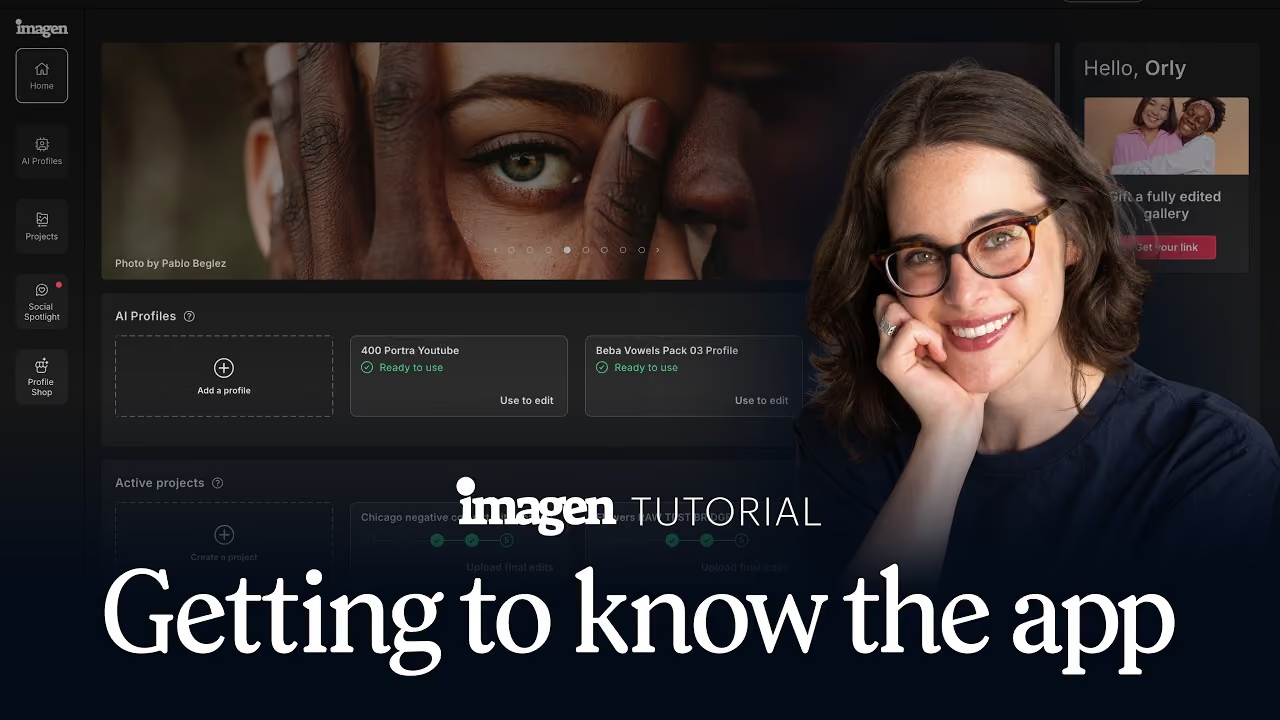
This is the Imagen interface. We are right now in the home section of the app. At the top of the screen, there’s a banner with new features, a few photos, and interesting things that are going on in the Imagen community. Below, we have the main two sections of the app: the AI profiles and the active projects.
Understanding AI Profiles and Projects
The AI profiles are the instruction manual that Imagen will apply to your projects, or in other words, it’s the editing style that Imagen will apply to your photos. Below that, you have the post section, related to our social spotlight tool, which helps you schedule and post photos you edit within Imagen directly to your social media outlets.
On the right side of the screen, you will see the uploader where you can manage the photos that get uploaded into the app. We also have a help and support button. If you have any questions or get stuck, feel free to drop your question here. Additionally, there’s a notifications button and an option for updates, what’s new, joining our communities, and invitations for other things. Finally, we have your account settings and, most importantly, your trial edit count.
Features of Your Free Trial
If you’re enjoying a free trial with Imagen, you have 1,000 photos to edit. You can use the AI tools on them and test out as many profiles as you like. You also receive two free calling projects.
On the other side of the screen, there’s a vertical menu which includes the home, AI profiles, projects, social spotlight, and profile shop.
Mastering AI Profiles
In the AI profiles section, you can see all the different profiles you create called personal AI profiles. You have a second option to view the profile showcase, showcasing various talent AI profiles already made and tested for your use. We have profiles for weddings, portraits, real estate, and more. Even with my own profiles, I still return to the profile showcase for accurate results.
Managing Projects and Workflow
Continuing with the vertical menu, we find the project section. Here, you have control over all the projects you’re currently editing, reviewing, and calling. There are two tabs: the active and the archive. The active projects are those you are still working with, while the archive contains completed ones.
The Imagen workflow involves five steps: calling, review, edit, review, and fine-tuning. You can track your progress with the green circles indicating your current stage in the process.
Using Social Spotlight and Profile Shop
Below the projects menu, we have Social Spotlight, which allows you to schedule and post photos edited with Imagen directly to social media channels, particularly Instagram. Below Social Spotlight, you’ll find the profile shop where you can browse additional AI profiles created by talented partners.
Wrapping Up
You can either start from the editing part or from the calling part by creating a project using the provided button. The first step is to explore the app and enjoy your free trial with Imagen. Remember, you have 1,000 free edits and two calling projects at your disposal. Welcome to the Imagen community, and if you have questions or need support, feel free to reach out to us. We’re here for you!
More suggestions just for you
Mastering Photo Review in Lightroom, Bridge, and Camera Raw
Learn how to efficiently review your AI-edited photos using Lightroom, Bridge, and Camera Raw. This guide helps integrate Imagen into your workflow for quality control.

Mastering Real Estate Photo Editing with Imagen
Learn how to use Imagen's AI tools for real estate photo editing, including features like sky replacement, HDR merge, and window pull, to enhance your property listings efficiently.
Introduction to Imagen: Navigating the Intelligent Studio
Learn how to set up your first project with Imagen, explore AI-powered photo editing and culling, and discover how to export your work seamlessly.
How to Master RAW Photo Editing in Imagen's Enhanced Editor
Learn to fine-tune your RAW photos in Imagen's editor after AI Profile adjustments. Explore editing panels, apply masks, create versions, and manage export settings for professional results.

