As portrait photographers, we’re always chasing that perfect look. You know the one—where the skin tones are just right, the lighting feels magical, and the mood is spot on. We spend countless hours behind the lens capturing those fleeting moments, but the real magic often happens in post-production. This is where Lightroom presets have traditionally stepped in, promising to transform our images with a single click. They’ve been a staple in our editing toolkits for years, offering a shortcut to a consistent and polished style.
But what if I told you there’s something even better? Something that goes beyond the static nature of a preset and adapts to each unique photo, just like you would. That’s where we’re headed in this guide. We’ll explore the world of Lightroom presets for portraits, from the basics to advanced techniques. More importantly, we’ll dive into how AI-powered tools like Imagen are revolutionizing the way we edit, offering a level of personalization and efficiency that presets alone simply can’t match.
Key Takeaways
- Presets are a starting point, not the final destination. They provide a great foundation for your edits but often require manual adjustments to fit each photo’s specific needs.
- Consistency is key in portrait photography. A cohesive portfolio helps define your brand and attract your ideal clients. Presets can help, but AI-powered solutions offer a more dynamic approach to achieving a consistent style.
- AI is not here to replace your creativity. Tools like Imagen are designed to be your personal editing assistant, handling the repetitive tasks so you can focus on the creative aspects of your work.
- Personalization is the future of editing. Instead of relying on one-size-fits-all presets, you can now create an AI Profile that learns your unique editing style and applies it with incredible accuracy.
- Efficiency doesn’t have to mean compromise. With the right tools, you can significantly reduce your editing time without sacrificing the quality and personal touch that make your portraits stand out.
What Are Lightroom Presets and Why Do They Matter for Portraits?
Let’s start with the basics. A Lightroom preset is essentially a saved set of editing adjustments. Think of it as a recipe for a specific look. With a single click, you can apply a combination of settings—exposure, contrast, color grading, and more—to a photo. For portrait photographers, this is a game-changer. Why? Because it helps us tackle two of our biggest challenges: speed and consistency.
Imagine you’ve just finished a three-hour portrait session. You’ve got hundreds of photos to go through, and you want them all to have that signature look your clients love. Instead of editing each photo from scratch, you can apply a preset to get you 90% of the way there. This not only saves you a ton of time but also ensures that every photo in the gallery has a cohesive feel.
The Different Flavors of Portrait Presets
Not all presets are created equal. They come in a wide variety of styles, each designed to evoke a different mood or aesthetic. Here are a few common types you’ll encounter:
- Clean and Classic: These presets are all about enhancing natural beauty. They offer subtle adjustments to color and tone, resulting in a timeless look that’s perfect for family portraits and headshots.
- Light and Airy: If you’re after that dreamy, ethereal vibe, these presets are your best friend. They typically involve bright exposures, soft contrast, and pastel color palettes.
- Dark and Moody: For those who prefer a more dramatic and emotional style, dark and moody presets are the way to go. They often feature deep shadows, rich colors, and a cinematic feel.
- Film Emulation: Love the look of classic film stocks? These presets are designed to replicate the color, grain, and character of traditional film photography, giving your digital portraits a nostalgic touch.
- Black and White: A timeless classic, black and white presets can add a sense of drama and emotion to your portraits. They come in various styles, from high-contrast and gritty to soft and romantic.
While presets are a fantastic tool, they do have their limitations. A preset that looks amazing on a backlit photo taken during golden hour might not work so well on a studio portrait with controlled lighting. This is where you, the photographer, come in. You still need to make those fine-tune adjustments to get the perfect result. But what if there was a way to make that process even smarter?
The Next Evolution: How Imagen Redefines Portrait Editing
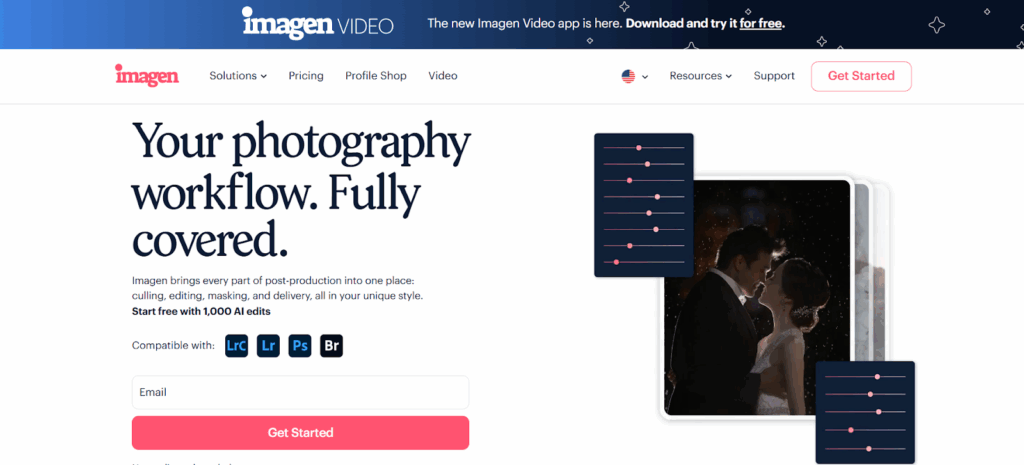
For years, presets were the best we had. But as technology has evolved, so have our editing tools. This is where Imagen steps in and completely changes the game. Imagen isn’t just another preset pack; it’s an AI-powered editing application that learns your personal style and applies it with incredible precision. It’s like having a dedicated photo editor who knows your every move, available 24/7.
Personal AI Profiles: Your Style, Only Faster
The core of Imagen is the Personal AI Profile. This is where the magic really happens. Instead of using a generic preset, you can create a profile that’s trained on your own edited photos. Here’s how it works:
- You provide the examples: You’ll need at least 2,000 of your previously edited photos from a Lightroom Classic catalog. These photos should represent a consistent editing style that you want the AI to learn.
- Imagen gets to work: The AI analyzes your edits, learning how you adjust everything from exposure and white balance to the HSL sliders and tone curve. It’s not just copying and pasting settings; it’s understanding the why behind your decisions.
- Your profile is born: In about 24 hours, you’ll have a Personal AI Profile that can edit new photos in your unique style.
The result? Edits that are remarkably consistent and accurate, no matter the lighting conditions or camera settings. It’s a level of personalization that a static preset could never achieve.
Don’t Have 2,000 Photos? No Problem.
What if you’re a newer photographer and don’t have a large back catalog of edited photos? Imagen has you covered with a couple of great options:
- Lite Personal AI Profile: This is a fantastic way to get started quickly. You simply upload a Lightroom preset that you like, answer a few questions about your editing preferences, and Imagen will create a profile for you in minutes.
- Talent AI Profiles: Want to edit in the style of some of the industry’s leading photographers? With Talent AI Profiles, you can. These are profiles created by renowned photographers, giving you access to their signature looks. It’s a great way to experiment with different styles and find one that resonates with you.
The best part is that as you use these profiles and make your own tweaks, you can upload your final edits to fine-tune your profile. This means your AI Profile evolves with you, constantly learning and adapting to your latest creative choices.
More Than Just Color and Tone: Imagen’s AI Tools
Imagen’s capabilities don’t stop at basic adjustments. It also offers a suite of AI tools designed to tackle some of the most time-consuming aspects of portrait editing:
- Subject Mask: Automatically create a precise mask of your subject, allowing you to make targeted adjustments without tedious manual brushing.
- Smooth Skin: Achieve natural-looking skin smoothing that enhances your subject’s features without looking over-edited.
- Crop and Straighten: Let the AI intelligently crop and straighten your photos for better composition.
- Portrait Crop: This tool is a lifesaver for headshots and school portraits, automatically centering the subject and cropping to a specific aspect ratio.
These tools are seamlessly integrated into the Imagen workflow, allowing you to automate even more of your editing process and get back to what you love most—taking pictures.
The Traditional Route: Finding, Installing, and Using Lightroom Presets
While AI-powered solutions like Imagen represent the future of photo editing, traditional Lightroom presets still have their place. They’re a great way to experiment with new styles and can be a valuable part of any photographer’s toolkit. So, where do you find them, and how do you get them into Lightroom?
Free vs. Paid Presets: What’s the Difference?
You’ll find a ton of presets out there, both free and for purchase. Here’s a quick rundown of what to expect from each:
- Free Presets: These are a great way to dip your toes in the water without any financial commitment. You can find them on photography blogs, YouTube channels, and even from some professional photographers. The quality can be a bit hit-or-miss, but they’re perfect for experimenting.
- Paid Presets: When you purchase presets from a reputable source, you’re generally getting a more polished and professional product. They often come in collections or packs, offering a variety of looks for different situations. You’ll also typically get better support and instructions on how to use them effectively.
Installing Your Presets: A Step-by-Step Guide
Once you’ve downloaded your presets (they usually come in a .zip file), getting them into Lightroom is a straightforward process. Here’s how to do it in Lightroom Classic:
- Unzip the file: First, you’ll need to extract the preset files from the .zip folder.
- Open Lightroom Classic: Navigate to the Develop module.
- Find the Presets panel: On the left side of the screen, you’ll see the Presets panel. Click the “+” icon at the top right of the panel and select “Import Presets.”
- Navigate to your presets: Find the folder where you unzipped your preset files and select them.
- Click “Import”: Lightroom will add the presets to a new group in your Presets panel, and you’re ready to start editing.
Staying Organized: Taming the Preset Chaos
If you’re anything like me, you’ll quickly accumulate a lot of presets. To avoid getting overwhelmed, it’s a good idea to keep them organized. You can create your own folders within the Presets panel, grouping them by style (e.g., “Clean and Classic,” “Moody Portraits”) or by source (e.g., “Imagen Talent Profiles,” “Free Presets”). This will make it much easier to find the perfect look for your next portrait session.
A Practical Guide to Editing Portraits with Presets and AI
Now for the fun part: putting these tools into action. Let’s walk through a few common portrait scenarios and see how we can use presets and Imagen’s AI to achieve stunning results.
Scenario 1: The Golden Hour Outdoor Portrait
You’ve just captured a beautiful portrait during golden hour. The light is soft and warm, but you want to enhance that magical feeling.
With a Preset:
- Apply a “Light and Airy” or “Golden Hour” preset. This will likely brighten the image, add warmth, and soften the contrast.
- Adjust the white balance. The preset might make the image a little too warm or cool, so use the Temp and Tint sliders to fine-tune the skin tones.
- Tweak the exposure. If the subject is still a bit too dark or bright, a quick adjustment of the Exposure slider will do the trick.
- Check the skin tones. You may need to make small adjustments to the Orange and Red saturation and luminance sliders in the HSL panel to get the skin looking perfect.
With Imagen:
- Select your Personal AI Profile. Whether it’s one you’ve built from your own edits or a Lite Profile based on your favorite preset, apply it to the photo.
- Let the AI work its magic. Imagen will analyze the specific lighting conditions of your photo and apply your style with incredible accuracy. The exposure, white balance, and color grading will be tailored to that individual image.
- Add AI tools for the finishing touches. Use Subject Mask to subtly brighten your subject and make them pop. Apply a touch of Smooth Skin for a polished, professional look.
- Review and sync. The edits are automatically applied to your Lightroom catalog. All you have to do is review the results and make any final creative tweaks.
Scenario 2: The Classic Studio Headshot
Studio portraits are all about control. The lighting is precise, and the background is clean. You want an edit that is sharp, professional, and consistent across a series of headshots.
With a Preset:
- Apply a “Clean and Classic” or “Portrait Pop” preset. This will likely add a bit of contrast, sharpen the details, and make subtle color adjustments.
- Batch apply the preset. Since the lighting is consistent across all the headshots, you can apply the same preset to all the images at once.
- Go through and fine-tune. You’ll still need to check each photo individually to make sure the exposure and skin tones are perfect. This can be time-consuming, even with a preset.
With Imagen:
- Use your Personal AI Profile. The AI will ensure that every headshot is edited with the same professional style, even with slight variations in lighting or subject position.
- Apply Portrait Crop. This is a huge time-saver for headshots. The AI will automatically center the subject and crop to your desired aspect ratio, ensuring perfect framing every time.
- Use Smooth Skin and Whiten Teeth. Add these AI tools to give your headshots that extra level of polish that clients love.
- Download and deliver. With Imagen handling the heavy lifting, you can deliver a full gallery of professionally edited headshots in a fraction of the time.
Scenario 3: The Dramatic Black and White Portrait
Sometimes, a portrait just calls for the timeless beauty of black and white. You want an edit that is rich in contrast and full of emotion.
With a Preset:
- Apply a black and white preset. You’ll find a wide variety, from high-contrast and gritty to soft and romantic.
- Adjust the B&W mix. In the B&W panel in Lightroom, you can adjust the sliders for each color to control how they are converted to grayscale. This is crucial for getting the skin tones just right.
- Play with the Tone Curve. The Tone Curve is your best friend for controlling contrast in black and white images. Create a gentle S-curve to add a bit of pop.
With Imagen:
- Create a black and white Personal AI Profile. If you have a signature black and white style, you can train a dedicated profile for it. This will ensure that all your monochrome portraits have a consistent and powerful look.
- Use a Talent AI Profile. Many of the Talent AI Profiles offer stunning black and white conversions. It’s a great way to get a professional look with a single click.
- Let the AI handle the conversion. Imagen will intelligently convert your color photo to black and white, taking into account the unique tones and lighting of the image to create a result that is perfectly aligned with your chosen profile.
- Make creative adjustments. Once the AI has done its work, you can still go into Lightroom and make your own creative tweaks to the B&W mix or Tone Curve to add your final personal touch.
As you can see, both presets and AI-powered tools like Imagen can help you achieve incredible results in your portrait editing. The key is to find the workflow that works best for you and allows you to be both efficient and creative. For me, the combination of a personalized AI Profile in Imagen and the flexibility to make final adjustments in Lightroom is the ultimate sweet spot.
Expanding Your Knowledge: 13 Questions Answered
To help you dive even deeper, here are the answers to some common questions about Lightroom presets and AI editing for portraits.
1. Can I create my own Lightroom presets?
Absolutely! Once you’ve perfected an edit on a photo, you can save those settings as a preset. In the Develop module, go to the Presets panel, click the “+” icon, and select “Create Preset.” This is a great way to build a collection of your own signature looks.
2. Will using presets make my photos look like everyone else’s?
It’s a valid concern, especially with popular preset packs. The key is to use presets as a starting point and then add your own personal touch. Make adjustments, experiment with the settings, and over time, you’ll develop a style that is uniquely yours. This is also where a Personal AI Profile from Imagen really shines, as it’s built entirely on your own work.
3. Are presets compatible with Lightroom Mobile?
Yes, most modern presets (in the .XMP format) will sync automatically to Lightroom Mobile if you have an Adobe Creative Cloud subscription. This is great for editing on the go.
4. Can presets damage my original photos?
No, Lightroom is a non-destructive editor. This means that any edits you make, whether with a preset or manually, are saved as a set of instructions. Your original RAW file is never altered.
5. How do I know which presets are right for my style?
The best way is to experiment. Look for preset creators whose work you admire and see if they offer sample presets to try. With Imagen’s Talent AI Profiles, you can easily compare different styles on your own photos before committing to one.
6. What’s the difference between a preset and a Lightroom profile?
This can be a bit confusing. A preset is a saved set of slider adjustments. A Lightroom profile is a more advanced tool that can change the way Lightroom interprets the color and tone information in your RAW file. Some presets also include a custom profile.
7. Is AI editing difficult to learn?
Not at all. Tools like Imagen are designed to be incredibly user-friendly. The process of creating a project, choosing a profile, and downloading your edits is very intuitive. It’s all about simplifying your workflow, not complicating it.
8. Will Imagen’s AI work with my camera’s files?
Imagen supports a wide range of RAW and JPEG files from all major camera manufacturers. As long as your files can be opened in Lightroom, you should have no problem using them with Imagen.
9. Can I still make my own adjustments after using Imagen?
Yes, and you’re encouraged to do so! Imagen is designed to handle the repetitive, technical parts of editing, freeing you up to focus on the creative side. Once you download your edited photos back into Lightroom, you have full control to make any final tweaks you see fit.
10. How much does Imagen cost?
Imagen offers a pay-as-you-go pricing model, so you only pay for the photos you edit. There are also subscription plans for culling and cloud storage. The best part is that you can get started with 1,000 free AI edits to try it out for yourself.
11. What is “fine-tuning” in Imagen, and why is it important?
Fine-tuning is the process of updating your Personal AI Profile with your latest edits. Every time you make tweaks to the photos that Imagen has edited for you, you can upload those final versions. The AI learns from these changes, making your profile even more accurate over time. It’s a key feature that helps your editing style evolve.
12. Can I use Imagen for other types of photography besides portraits?
Yes, Imagen is a versatile tool that can be used for a wide range of photography genres, including weddings, events, real estate, and more. You can create different Personal AI Profiles for each of your editing styles.
13. Where can I learn more about using Imagen?
Imagen has an extensive help center with articles and video tutorials to guide you through every step of the process. The photography community is also a great resource for tips and inspiration.
Final Thoughts: Your Workflow, Your Choice
In the end, the best editing workflow is the one that works for you. Whether you’re a die-hard fan of traditional presets or you’re ready to embrace the power of AI, the goal is the same: to create beautiful portraits that you and your clients will love.
For me, the shift to an AI-powered workflow with Imagen has been nothing short of transformative. It has saved me countless hours, brought a new level of consistency to my work, and, most importantly, given me more time to be creative. It’s not about letting a robot take over; it’s about having a powerful assistant that helps you be a better, more efficient photographer.
So, I encourage you to explore the options. Download some free presets, try out a Talent AI Profile, and maybe even start training your own Personal AI Profile. You might be surprised at how much it can elevate your portrait photography.