As a professional photographer, you know that capturing a scene exactly as your eyes see it is one of the biggest challenges we face. Our cameras, for all their technological prowess, have limitations, especially when it comes to dynamic range—the ability to capture detail in both the brightest highlights and the deepest shadows of a single frame. This is where High Dynamic Range, or HDR, photography comes into play. It’s a technique that allows us to push past the physical constraints of our camera sensors and create images that are rich, detailed, and true to life. For years, I’ve relied on Adobe Lightroom Classic as the command center for my post-production work, and when it comes to HDR, its tools are nothing short of essential. But in a business where time is money, efficiency is just as important as quality. That’s where leveraging tools like presets, and even more advanced AI solutions, can transform your workflow from a slow grind into a streamlined, creative process.
Key Takeaways
- Understanding HDR: HDR photography is a technique, not just a filter. It involves combining multiple photos taken at different exposure levels (a practice called bracketing) to create a single image with a much wider range of detail than any single shot could capture. This is ideal for high-contrast scenes like landscapes at sunrise or sunset, and interior shots with bright windows.
- Shooting for Success: The quality of your final HDR image starts in the camera. Using a tripod is non-negotiable for sharpness and alignment. Shoot in RAW format to capture the maximum amount of data, use a low ISO to minimize noise, and set your camera to Aperture Priority mode to ensure a consistent depth of field across all your bracketed shots.
- Lightroom’s HDR Merge: Lightroom Classic has a powerful, built-in Photo Merge tool that makes creating an HDR image straightforward. It allows you to combine your bracketed exposures into a single DNG file, giving you options to auto-align the images, apply auto settings, and manage “ghosting” artifacts caused by movement between frames.
- The Power of Presets: Lightroom presets are saved settings that can be applied to your photos with a single click, dramatically speeding up your editing workflow. For HDR, presets can provide a consistent starting point, helping you achieve a specific look—whether it’s natural and subtle or bold and dramatic—across multiple images.
- Beyond Presets with AI: While presets are a huge time-saver, they are a one-size-fits-all solution. For a truly personalized and intelligent workflow, AI-powered tools like Imagen offer the next level of efficiency. Imagen creates a Personal AI Profile by learning from your unique editing style, including how you handle HDR images, and then applies those nuanced adjustments to each photo individually.
- Automated HDR Workflow: Imagen further streamlines the process with its own HDR Merge tool. This feature can automatically identify your bracketed sets, merge them, and then apply your Personal AI Profile for a nearly hands-off workflow from start to finish, delivering results that are not just fast, but also uniquely yours.
What Exactly is HDR Photography?
Before we dive into the world of presets and post-processing, let’s get on the same page about what HDR photography really is. You’ve probably seen those surreal, overly processed images online that give HDR a bad name. But at its core, HDR isn’t about creating hyper-realistic or cartoonish photos. It’s a technical approach to overcome a fundamental limitation of digital cameras.
Our eyes are incredible. They can perceive an immense range of light in a single moment. Think about standing inside a room and looking out a window on a bright, sunny day. You can see the details of the furniture inside the room and the clouds in the sky outside, all at the same time. Your camera, however, struggles with this. If you expose for the room, the view outside the window will be completely blown out—a wash of pure white with no detail. If you expose for the sky, the room will be plunged into deep, dark shadows, losing all its texture and color.
This is where the technique of exposure bracketing comes in. To create an HDR image, you take a series of photographs of the exact same scene without moving the camera. Typically, you’ll take at least three shots:
- A “normal” or base exposure: This is what the camera’s meter thinks is the correct exposure for the overall scene.
- An underexposed shot: This darkens the image to capture all the rich detail in the brightest parts of the scene, like the bright sky or direct sunlight on a building.
- An overexposed shot: This brightens the image to reveal all the hidden detail in the darkest shadows, like the deep corners of a room or the underside of a thick forest canopy.
Once you have these bracketed shots, you bring them into software like Lightroom. The software then merges these separate exposures, taking the best-lit parts from each photo and blending them into a single, new image. This merged file contains a “high dynamic range” of information, giving you incredible flexibility in your editing to pull out details from the highlights and shadows without introducing noise or losing quality.
When Should You Use HDR?
HDR is a powerful tool, but it’s not the right choice for every situation. It truly shines in high-contrast scenarios where you have both very bright and very dark areas in the same frame. Here are some classic examples where I always reach for my bracketing setting:
- Landscape Photography: This is the most common use for HDR. Sunrises and sunsets are perfect examples. The sky is incredibly bright, while the foreground landscape is often in shadow. HDR allows you to capture the vibrant colors of the sky and the rich details of the land in one perfect image.
- Real Estate and Architectural Photography: When shooting interiors, you almost always have to deal with bright windows and a darker indoor space. HDR is essential for creating clean, professional-looking photos that show both the interior of the property and the view outside. For exteriors, it helps balance a bright sky with shadowed parts of the building.
- Backlit Scenes: Any time your subject is backlit, you’re going to have a high-contrast situation. HDR can help you properly expose your subject without completely blowing out the bright background.
On the other hand, HDR is generally not a great choice for scenes with a lot of fast-moving subjects (like sports or action photography) because the movement between frames will create a blurry, “ghostly” mess when you try to merge the photos. It’s also unnecessary for scenes that are evenly lit and don’t have a wide dynamic range, as a single RAW file will have more than enough information to work with.
Setting Yourself Up for Success: How to Shoot for HDR
Your final HDR image is only as good as the source files you feed into it. A little bit of planning and proper technique in the field will save you a world of headaches in post-production. Here’s my checklist for shooting bracketed exposures for HDR.
The Essential Gear
While you can technically shoot handheld, I wouldn’t recommend it. For crisp, perfectly aligned HDR images, some gear is non-negotiable.
- A Sturdy Tripod: This is the most important piece of equipment for HDR photography. You need your camera to be absolutely still while you capture your bracketed sequence. Any movement between shots will result in misaligned images and a blurry final product.
- A Camera with Manual and Bracketing Modes: Most DSLRs and mirrorless cameras have an Automatic Exposure Bracketing (AEB) feature. This is a huge time-saver, as it will automatically shoot a sequence of exposures for you. You’ll also want the ability to shoot in full Manual or Aperture Priority mode for maximum control.
- A Remote Shutter Release or Self-Timer: Even the simple act of pressing the shutter button can cause a tiny bit of camera shake, which can ruin the sharpness of your images. Using a cable release, a wireless remote, or your camera’s built-in two-second timer will ensure a completely hands-off, shake-free capture.
In-Camera Settings for Perfect Brackets
Once your gear is set up, it’s time to dial in your camera settings. Consistency is key here.
- Shoot in RAW: This is a golden rule for almost any type of serious photography, but it’s especially critical for HDR. A RAW file captures the maximum amount of image data from the sensor, giving you far more flexibility in post-processing than a compressed JPEG.
- Use a Low ISO: To get the cleanest, most noise-free image possible, set your ISO to its base level, which is typically 100 or 200 on most cameras. Because you’re on a tripod, you don’t need to worry about slow shutter speeds.
- Set Your Camera to Aperture Priority (A/Av) Mode: This is my go-to mode for shooting HDR. You choose the aperture you want (which determines your depth of field), and the camera will automatically adjust the shutter speed for each bracketed shot. This ensures that your depth of field remains identical across all the images, which is crucial for a seamless merge.
- Turn on Auto-Exposure Bracketing (AEB): Dive into your camera’s menu and find the AEB setting. I recommend starting with a 3-shot sequence with a 2-stop difference between each exposure (-2, 0, +2). This is a great starting point for most high-contrast scenes. For extreme situations, like shooting directly into the sun, you might need a 5 or even 7-shot bracket.
- Use Single-Point Autofocus and Lock It In: Focus on your main subject, then switch your lens to manual focus. This prevents the camera from trying to refocus between each shot in your bracketed sequence, which would ruin the series.
- Turn Off Any In-Camera Image Stabilization: When your camera is on a tripod, image stabilization (also known as Vibration Reduction or Vibration Compensation) can actually introduce a tiny bit of blur as it tries to correct for movement that isn’t there. It’s best to turn it off.
Once everything is set, use your remote or self-timer to fire off your bracketed sequence. You’ll hear the shutter click multiple times as it captures the underexposed, normal, and overexposed frames. Now you have the raw materials you need to create a stunning HDR image in Lightroom.
The Magic of Merging: Creating HDRs in Lightroom
With your bracketed photos loaded into Lightroom Classic, the real fun begins. Lightroom’s built-in HDR merging tool is powerful, intuitive, and produces excellent, natural-looking results. Here’s how to use it.
Step-by-Step Guide to Lightroom’s Photo Merge
- Select Your Bracketed Images: In the Library or Develop module, find your bracketed sequence of photos. Hold down the Ctrl key (or Cmd on a Mac) and click on each image in the sequence to select them. You’ll see them highlighted in the filmstrip at the bottom of the screen.
- Initiate the Merge: With your images selected, right-click on any one of them and navigate to Photo Merge > HDR. Alternatively, you can use the keyboard shortcut Ctrl+H.
- The HDR Merge Preview Window: Lightroom will take a moment to analyze the images and then present you with a preview of the merged HDR photo. On the right side of this window, you’ll find a few important options.
- Auto Align: This should always be checked. It tells Lightroom to analyze the images and correct for any minor movements or shifts that might have occurred between shots, ensuring everything lines up perfectly.
- Auto Settings: I usually keep this checked as well. It gives Lightroom permission to make an initial, intelligent guess at the best tone and color adjustments for the merged image. It’s a great starting point, but you’ll almost certainly want to fine-tune it yourself afterward.
- Deghost Amount: This is a crucial setting if you had any movement in your scene between the bracketed shots—think rustling leaves, moving clouds, or people walking in the distance. “Ghosting” is the blurry, semi-transparent artifact that appears when an object is in a different position in each frame. Lightroom can detect this and try to correct it. You have four options: None, Low, Medium, and High.
- If your scene was completely static, you can leave this at None.
- If you see some ghosting in the preview, start with Low and see if it fixes the problem. If not, work your way up to Medium or High. Be aware that using a high deghost setting can sometimes introduce its own strange artifacts, so only use as much as you need. Lightroom can even show you a deghost overlay to highlight the areas it’s correcting.
- Create Stack (Optional): Checking this box will group your original bracketed photos and the new HDR file together in a neat little stack in your Lightroom Library, which is great for staying organized.
- Click Merge: Once you’re happy with the settings, click the Merge button. Lightroom will get to work and create a brand new file. You’ll see it appear in your filmstrip with “-HDR” appended to the original filename. This new file is a 32-bit DNG (Digital Negative) file, which contains all the combined exposure data from your original shots, giving you incredible editing latitude.
Now you have a single, high-quality image ready for your creative touch. The next step is to edit this DNG file just as you would any other RAW photo, but with the newfound ability to push your shadows and highlights much further than before.
Streamlining Your Workflow: The Role of Lightroom HDR Presets
Editing a single HDR photo can be a joy. But when you’re a working photographer with hundreds, or even thousands, of images from a shoot—say, a wedding or a large real estate project—editing each one from scratch is simply not practical. This is where presets come in.
A Lightroom preset is simply a saved collection of settings. Think of it as a recipe for a specific look. With a single click, you can apply a whole range of adjustments—from basic exposure and contrast to complex color grading and sharpening—to any photo.
For HDR photography, presets can be a game-changer. Since merged HDR files often have a similar starting point (usually a bit flat and desaturated before editing), a good set of HDR-specific presets can give you a consistent and high-quality base to work from, saving you a massive amount of time.
Finding and Using HDR Presets
There is a vast world of presets out there, both free and paid. You can find them on dedicated photography websites, creative marketplaces, and from individual photographers who sell their own custom styles.
- Free Presets: These can be a great way to experiment without any financial commitment. However, the quality can be hit or miss. They might be designed for JPEGs instead of RAWs, or they might produce an overly processed, unnatural look. Still, they are worth exploring.
- Paid Presets: Generally, paid presets from reputable sources are a better investment. They are often more professionally crafted, come with instructions, and are designed to work well on high-quality RAW and DNG files. They are usually created by professional photographers who have honed their look over many years.
Once you have a preset pack, you’ll need to install it in Lightroom. This is a simple process: just go to the Presets panel in the Develop module, click the plus (+) icon, and select “Import Presets.” Navigate to the folder where you saved your presets, and they will appear in your panel, ready to use.
When you apply a preset to your merged HDR DNG file, don’t think of it as the final step. Think of it as a starting point. It might get you 80% or 90% of the way there, but you should always expect to make small tweaks to the basic sliders like exposure, contrast, and white balance to perfectly match the specific lighting and content of each photo.
Creating Your Own Custom HDR Presets
The real power comes when you start creating your own presets tailored to your unique style. As you edit your HDR photos, you’ll likely find that you’re making similar adjustments over and over again. Why not save those adjustments as a preset?
It’s an incredibly simple process:
- Perfect Your Edit: Take one of your merged HDR DNG files and edit it until you are completely happy with the look. Adjust the basic tone, the color grading, the sharpening—everything.
- Create a New Preset: Go to the Presets panel and click the plus (+) icon, then select “Create Preset.”
- Choose Your Settings: A new window will pop up, showing a checklist of every possible adjustment in Lightroom. Here, you can choose which settings you want to save in your preset. For a general-purpose HDR preset, you’ll probably want to include most settings, but you might want to uncheck things like White Balance, Exposure, and Transform settings (like cropping and straightening), as these tend to be very specific to each individual photo.
- Name and Save: Give your preset a descriptive name, choose which group you want to save it in, and click “Create.”
That’s it! Your custom preset now appears in your panel, ready to be deployed on your next batch of HDR images, giving you a consistent look that is 100% your own.
The Next Evolution: Beyond Presets with Imagen
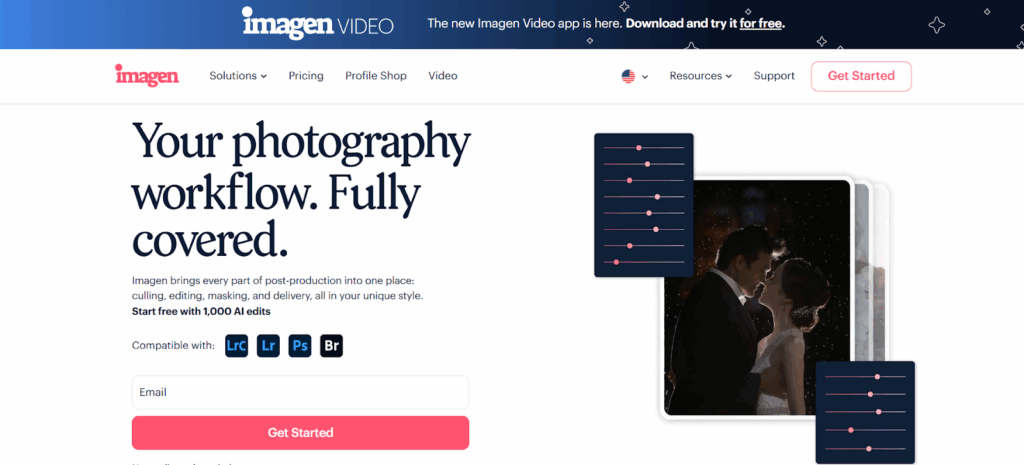
Presets are a fantastic leap forward in efficiency, but they still have a fundamental limitation: they are static. A preset applies the exact same set of adjustments to every single photo, regardless of what’s in the image. It doesn’t know if the photo is a dark, moody interior or a bright, airy beach scene. You still have to do the manual work of tweaking each photo to perfection.
What if you could have the speed of a preset but with the intelligence of a human editor? That’s the problem that AI-powered editing tools like Imagen were built to solve.
As a professional photographer, I was skeptical at first. The idea of handing over creative control to an algorithm felt wrong. But what I discovered is that Imagen isn’t about taking away control; it’s about automating the repetitive parts of my workflow so I can focus on the creative finishing touches. It’s not a replacement for my artistic vision; it’s a tool that learns it.
How Imagen Learns Your Unique Style
Instead of using a generic, pre-packaged look, Imagen creates what it calls a Personal AI Profile. This profile is built by analyzing your own previously edited photos. To create it, you upload at least 3,000 of your edited images directly from your Lightroom Classic catalogs. Imagen‘s neural network then studies every single adjustment you’ve ever made—your preferred exposure levels, your contrast curves, your color grading tendencies in the shadows and highlights, how you handle different lighting conditions—everything.
It learns your unique “editing DNA” and builds a profile that can then edit new photos exactly like you would.
This is a profound shift from how presets work. When you send a new shoot to be edited with your Personal AI Profile, Imagen doesn’t just slap on a single set of settings. It analyzes each photo individually and applies a bespoke set of adjustments based on the specific content and lighting of that photo, all while staying true to your personal style. The result is an incredibly consistent and accurate edit that often needs little to no further tweaking. It’s like having a team of virtual assistants who have perfectly memorized your every move.
An Integrated HDR Workflow with Imagen
So, how does this apply to HDR photography? Imagen has built an end-to-end solution that makes the HDR process almost completely automatic.
The Imagen desktop app includes a powerful HDR Merge tool. When you create a new editing project, you can simply point it to a folder of your bracketed photos. Imagen‘s AI will automatically scan the folder, identify all your bracketed sequences based on the camera’s metadata, and merge them into high-quality DNG files.
But here’s where the magic really happens. Immediately after merging, Imagen can apply your Personal AI Profile to the newly created HDR DNGs. So, in one seamless, cloud-based process, you go from a folder of raw, bracketed exposures to a collection of fully edited, personalized HDR images. The entire process, which could take hours of manual work in Lightroom, is often completed in just a few minutes.
This level of automation is a game-changer for high-volume photographers. It frees you from the tedious, repetitive tasks of merging and applying base edits, allowing you to spend your valuable time on the creative final touches, client communication, or simply getting back out there to shoot. It’s a workflow that combines the best of both worlds: the consistency and personalization of your unique style with the incredible speed and efficiency of AI.
Common HDR Pitfalls and How to Avoid Them
Whether you’re using presets or an advanced tool like Imagen, there are a few common issues that can pop up in HDR photography. Knowing what to look for and how to fix them is key to producing professional-quality results.
- Unnatural, “Overcooked” Look: This is the classic HDR mistake. It happens when you push the sliders too far, especially clarity, saturation, and shadow recovery. The goal is usually to create a natural-looking image that represents what the eye can see. Be subtle with your adjustments. If an image starts to look like a painting or a video game, dial it back.
- Halos: These are bright or dark outlines that can appear along high-contrast edges, like a mountain range against a bright sky. They are often caused by pushing the Highlights and Shadows sliders too aggressively. If you see halos, try reducing those adjustments or using a more localized tool like a brush or gradient filter to make your adjustments more targeted.
- Ghosting: As mentioned earlier, this is caused by movement between your bracketed shots. Lightroom’s deghosting tool does a good job, but it’s not perfect. The best way to avoid ghosting is to shoot on a calm day and be mindful of any moving elements in your frame. If you can’t avoid it, sometimes you may need to do more advanced blending in Photoshop to fix it.
- Noise: While shooting at a low ISO helps, brightening the shadows in an HDR image can still introduce some digital noise. Luckily, Lightroom’s Denoise AI tool is incredibly effective at cleaning this up without destroying detail. Running Denoise on your final merged DNG is a great final step to ensure a clean, crisp image.
By being mindful of these potential issues, you can ensure your final HDR images are clean, natural, and professional, ready to impress your clients.
Final Thoughts: The Right Tools for a Modern Workflow
In the world of professional photography, your time is your most valuable asset. The techniques and tools we use in our post-production workflow have a direct impact on our profitability and, just as importantly, our work-life balance. High Dynamic Range photography is an essential technique for capturing the world as we see it, and tools like Adobe Lightroom Classic have made the process more accessible than ever.
Using Lightroom HDR presets is a fantastic way to bring speed and consistency to your editing. Creating your own custom presets takes this a step further, allowing you to define a signature style that is uniquely yours. But in today’s fast-paced market, efficiency is king. For those of us shooting high volumes of images, the evolution beyond static presets to intelligent, AI-powered tools like Imagen represents a monumental leap forward. By learning your style and automating the most time-consuming parts of the HDR process, it allows you to produce higher quality, more consistent work in a fraction of the time.
Ultimately, the best workflow is the one that works for you—one that removes friction, sparks creativity, and gives you more time to do what you love. Whether you stick with a manual process, build a library of custom presets, or embrace the power of AI, mastering your HDR workflow is a critical step in elevating your craft and growing your business.
Expansion: 13 Questions and Answers on Lightroom HDR Presets
1. Can I use regular Lightroom presets on HDR photos?
Yes, you absolutely can. Any preset designed for Lightroom will work on a merged HDR DNG file. However, presets created specifically for HDR images are often optimized to handle the expanded dynamic range and may give you a better starting point. They are typically designed to add contrast and color back into the often-flat initial merge.
2. Do I need to buy expensive presets to get good results?
Not necessarily. While premium presets from reputable creators are often very well-made, you can achieve fantastic results by creating your own. The best preset is one that matches your personal style, and building your own is the perfect way to do that. It’s a great exercise in defining and refining your look.
3. How many bracketed shots should I take for the best HDR image?
For most situations, a 3-shot bracket with 2 stops of exposure difference between each shot (-2, 0, +2) is plenty. For scenes with extremely high contrast, like shooting directly into a sunrise or a very dark interior with a huge, bright window, a 5-shot or even 7-shot bracket (-4, -2, 0, +2, +4) might be necessary to capture the full range of light.
4. What is the difference between an HDR DNG file and a regular RAW file?
A regular RAW file contains all the data captured by your camera’s sensor in a single shot. An HDR DNG file, created by Lightroom’s Photo Merge, is a new RAW file that combines the image data from multiple bracketed exposures. It contains significantly more dynamic range information, allowing you to recover extreme highlights and shadows with much less noise and color degradation.
5. Why do my HDR photos sometimes look flat and gray after merging?
This is completely normal. The initial merged HDR file in Lightroom is designed to be a neutral starting point that contains the maximum amount of information. It often looks desaturated and low in contrast. The goal of the merge is to give you the data; it’s up to you (or your preset) to bring back the life, contrast, and color during the editing process.
6. Can Imagen create an HDR merge from a single RAW file?
No, Imagen’s HDR Merge tool, like Lightroom’s, requires a sequence of bracketed exposures to create a true HDR image. While you can edit a single RAW file to create an “HDR-like” effect by pushing the shadows and highlights, it won’t have the same quality or detail as an image created from multiple, properly bracketed shots.
7. Is it better to use “Auto Settings” in the Lightroom HDR Merge window?
I recommend leaving it checked. The “Auto Settings” feature in Lightroom has become quite intelligent. It provides a good, balanced starting point by making initial adjustments to the tone and color. You will almost always want to tweak these settings yourself, but it saves you the first few steps and gives you a better preview of the image’s potential.
8. Can I fine-tune my Imagen Personal AI Profile with just HDR edits?
Yes. When you upload your final, tweaked edits back to Imagen to fine-tune your profile, the AI learns from those changes. If you consistently adjust how your profile handles HDR images (for example, by always adding a bit more contrast or warmth), the profile will learn this preference and apply it to future HDR edits, making your results even more accurate over time.
9. What’s the best way to deal with moving objects like people or cars in an architectural HDR shot?
This is where Lightroom’s deghosting feature is essential. When you merge your bracketed photos, use the “Deghost Amount” slider and turn on the “Show Deghost Overlay” option. Lightroom will highlight the areas where it detects movement. You can then choose a Low, Medium, or High setting to have it use data from just one of the frames (usually the base exposure) in that specific area to eliminate the ghosting.
10. Do I lose quality when I merge photos to HDR in Lightroom?
No, quite the opposite. You are gaining quality. The merged HDR DNG file is a 16-bit or 32-bit file that contains far more data than any of the individual source photos. This increased data is what allows you to make extreme adjustments to the highlights and shadows without the image falling apart or becoming noisy.
11. Can I create black and white presets for my HDR photos?
Absolutely! The process is the same. After merging your bracketed photos, convert the resulting HDR DNG to black and white in the Develop module. Make all your tonal adjustments using the B&W Mixer panel, contrast, and tone curve, and then save those settings as a new preset. This is a great way to create dramatic, high-contrast monochrome images.
12. Does using Imagen mean I can’t use my favorite presets?
Not at all. Imagen‘s workflow is flexible. You can create a Lite Personal AI Profile which is based on a preset you already own and love. Imagen will then use your preset as a foundation but will intelligently adjust core settings like exposure and white balance for each individual photo, giving you the best of both worlds: the style of your favorite preset with the adaptability of AI.
13. Should I apply lens corrections before or after merging to HDR?
You should apply lens corrections after merging. The merged DNG file is a new RAW file, and it will contain all the necessary metadata for Lightroom to identify your lens and apply the correct profile corrections for distortion and vignetting. Applying it to the final DNG ensures the correction is applied uniformly to the combined image data.